
Table of content
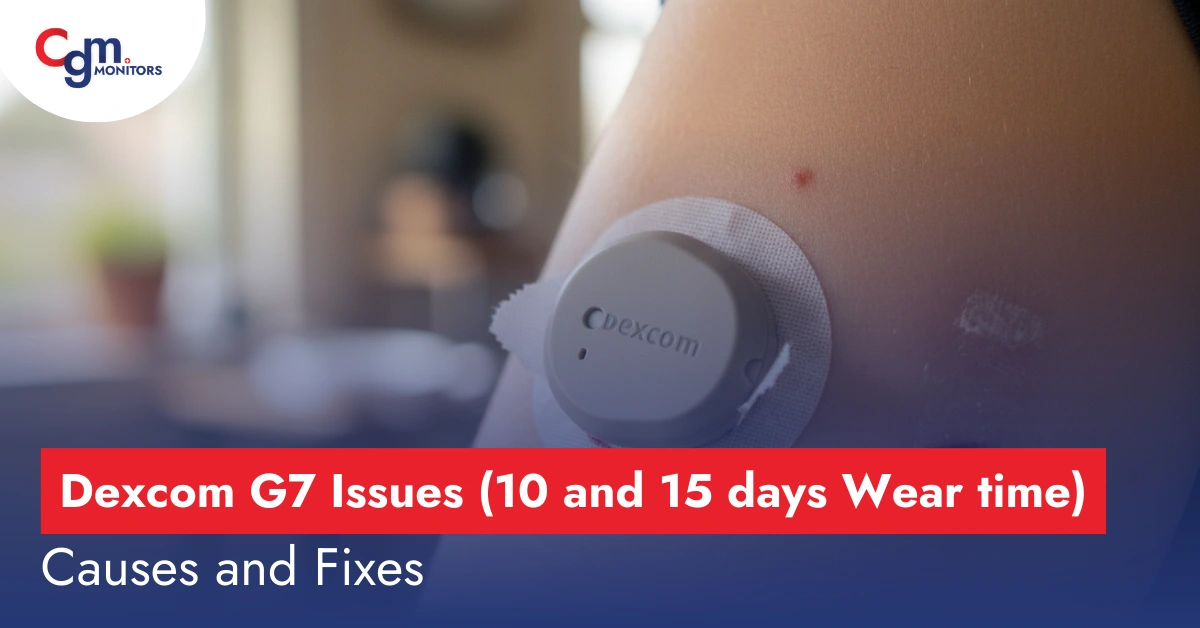
Wearing a Continuous Glucose Monitor is supposed to make life simpler. Experiencing Dexcom G7 issues is frustrating when you totally depend on CGM to manage diabetes. Whether you face signal loss, interrupt alarms, send inaccurate readings, or show sensor failed messages, these interruptions affect safety and daily life. Good news: many problems have clear, step-by-step solutions that you can try now. If you are using a standard Dexcom G7 or the premium version that has 15 days of wear time, don’t worry anymore. This guide, which is written based on the diabetic patients’ experience, walks you through the most common Dexcom G7 issues, what causes them, exactly what to try, and when to escalate, without giving medical dosing advice.
Why Do these Dexcom G7 Sensor Issues Happen
The G7 depends on hardware, adhesives, Bluetooth, the mobile app, and your phone’s OS. Problems commonly stem from:
- App/OS incompatibility
- Bluetooth interference or power saving
- Sensor-placement or insertion issues
- Adhesive/skin conditions
- Manufacturing or software faults
If you feel symptoms of high or low blood sugar, never rely solely on your Dexcom G7 CGM; check with a fingerstick meter like Accu Chek guide and follow clinical guidance. If alarms fail or are missing and you feel symptomatic, treat per your clinician’s instructions and contact Dexcom immediately. The FDA has issued recalls and notices related to alarms and certain app/receiver versions. Verify the recall status for your model.
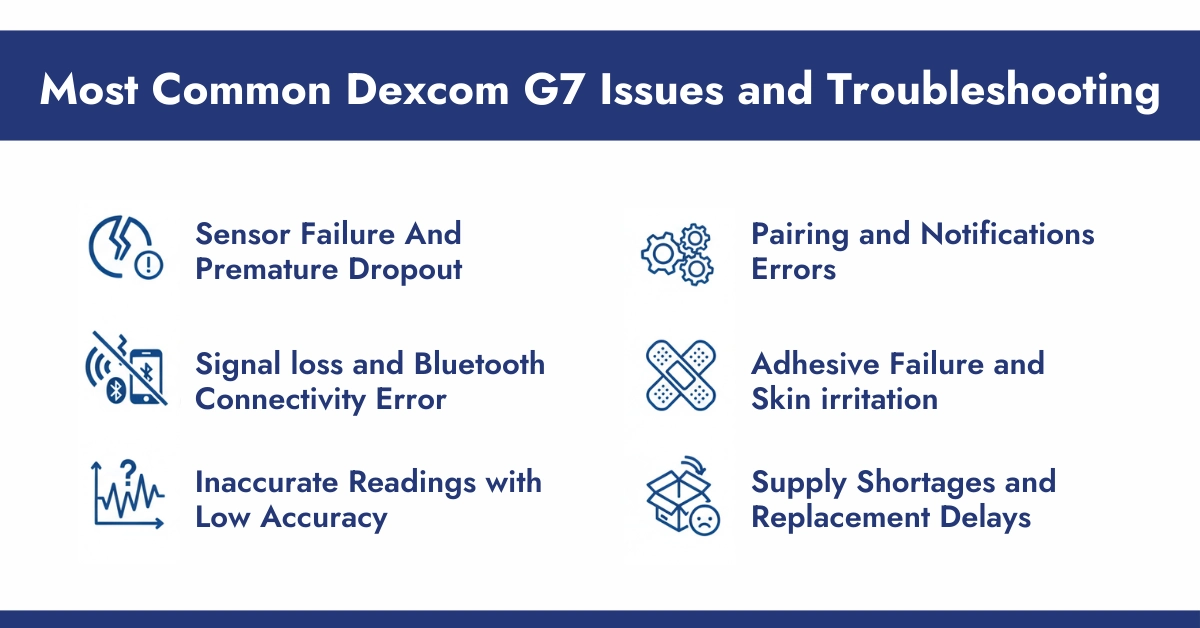
Most Common Dexcom G7 Issues and Troubleshooting
1. Sensor Failure And Premature Dropout
A common complaint is sensors that never finish their warm-up, or that stop reporting with a Sensor Failed message. Many factors can cause this: manufacturing defects, improper insertion, placement over scar tissue or poor circulation, exposure to extreme storage temperatures, or moisture under the patch during the first 24 hours.
Troubleshooting Tips to Handle G7 Sensor Failure
- Keep the failed sensor and record the serial number before disposal.
- Try a different insertion site and ensure you press the applicator firmly per instructions.
- Contact Dexcom Technical Support and submit photos/screenshots when you report a failure earlier.
- Ask your pharmacy whether incoming sensors come from a different manufacturing batch.
- If you need immediate backup supplies, your DME supplier, CGM Monitors, can often ship replacements quickly.
If you see repeated failures, document each incident, timestamps, photos, and sensor lot numbers. So, support teams and regulators can act.
Note: If you are new to the CGM sensor and do not know how to use Dexcom G7 CGM properly, this guide will help you because in this guide, CGM monitors’ experts answer the common questions from the diabetes community and then write accordingly.
2. Signal loss and Bluetooth Connectivity Error
When your Dexcom G7 keeps losing signal, gaps appear in your glucose graph, and audible alerts may not reach you. The G7 uses Bluetooth Low Energy; the practical range varies with obstacles and interference.
Common Causes
- Device distance beyond ~20 feet or physical barriers (walls, water, metal).
- Phone in Low Power or battery-saving mode that restricts background Bluetooth.
- Multiple paired Bluetooth devices are creating interference.
- Outdated Dexcom app or OS compatibility issues.
How to Troubleshoot
- Confirm Bluetooth is on and the app runs in the background (do not force-quit).
- Keep the phone within range and on the same side of your body as the sensor when possible.
- Restart your phone to refresh Bluetooth services.
- Update the app and your phone’s OS to the latest supported versions.
- For Android, enable location permissions if required for BLE.
- Temporarily disconnect other Bluetooth devices to test interference.
If these steps do not restore a stable connection, contact CGM monitors support for advanced diagnostics.
3. Inaccurate Readings with Low Accuracy
Because the G7 measures glucose in interstitial fluid, a physiologic lag of about 5–15 minutes vs. fingerstick blood glucose is normal. Rapid changes in blood glucose, compression lows (pressure on the sensor while sleeping), dehydration, or placement issues can make readings appear way off. Dexcom G7’s inaccurate reading causes many problems, and inacuracy rate is the main problem in both variations.
How to Improve Dexcom G7 Accuracy
The given steps are applied on both variations of Dexcom G7, so do not panic while using 10 or 15 days of wear time of Dexcom G7 sensors.
- Allow a full stabilization period after insertion; most Dexcom sensors settle within 24 hours.
- Always check a fingerstick before making treatment decisions; do not dose based on app values alone if readings conflict.
- Avoid sleeping directly on the sensor to reduce compression lows.
- Stay hydrated and choose insertion sites with good circulation.
- Use optional calibration only if readings consistently deviate by >20% and the device prompts it; otherwise, G7 is factory-calibrated.
Document repeated inaccuracies with screenshots and timestamps. For cross-checks, trusted meters such as the Contour Next Link 2.4, which is available at CGM Monitors, provide a reliable comparison.
4. Pairing and Notifications Errors
App instability leads to missed alerts and lost data. Many problems arise from corrupted app cache, insufficient storage, or incompatible phone models.
Quick fixes
- Update the Dexcom app from the app store.
- Check Dexcom device compatibility on the Dexcom Website
- Restart your phone and clear the app cache (Android) or reinstall the app if problems persist.
- Ensure the app has required permissions (Bluetooth, location, notifications) and is excluded from battery optimization.
- When pairing, stop any previous sensor session before starting the new one and enter the pairing code exactly.
If pairing repeatedly fails with an Invalid Pairing Code or the sensor won’t start, the sensor may be defective. Save it and call support.
5. Adhesive Failure and Skin irritation
Adhesive problems cause sensors to peel off prematurely; skin irritation affects comfort and continued CGM use. Sweat, oils, lotions, exercise, and body hair reduce adhesive function.
Prevention Steps:
- Clean the site with an alcohol wipe and let it dry fully before application.
- Use a medical barrier wipe for oily or sensitive skin.
- Apply a thin Dexcom G7 patch for extra security during exercise or swimming which is available at CGM monitors
- Avoid lotions around the insertion site for 24 hours before applying.
- Rotate sites and avoid scarred or mole-covered skin.
- For irritation, remove the sensor and treat the skin gently; consult your clinician for severe reactions.
6. Supply Shortages and Replacement Delays
Supply chain disruptions and high demand can produce backorders or longer waits for replacements. If replacements are delayed, keep extra sensors on hand when possible.
Practical steps
- Reorder when you have 7-10 days of supply remaining.
- Use multiple suppliers or set up automatic refills (every 26 days) to avoid gaps.
- Work with your DME to expedite prior authorization. Having the prescription and clinical notes ready helps.
- If urgent, contact suppliers like CGM Monitors that offer fast nationwide shipping and refill services.
Dexcom G7 Side Effects: Common Dexcom G7 Problems
Skin irritation and bleeding through the hole: Many users report redness, itching, swelling, rash, blistering, or even oozing/infection under the adhesive patch, sometimes appearing within a few days and requiring treatment or early removal.
Inaccurate Glucose Readings and Sensor Failures: Patients frequently report unreliable readings (too high or too low compared to fingersticks), early sensor shutdown after 1–3 days, signal loss, or complete failure, leading to missed alerts and unexpected blood sugar fluctuations.
Adhesion and Detachment Problems: The smaller patch often peels off prematurely during daily activities, sleep, or exercise, causing discomfort, bleeding on insertion, or the need for overpatches and frequent replacements.
When to Consult Support for Dexcom Sensor Replacement Online
Contact Dexcom Technical Support for sensor replacement or (have sensor serial number, phone model, OS version, and app version ready) if you experience:
- Sensor failure during warm-up or partway through the wear period.
- Persistent signal loss after standard troubleshooting.
- Readings more than 20% off from your meter repeatedly.
- App errors after updating and reinstalling.
- Multiple sensors failing from the same batch.
- A Brief Sensor Issue lasting several hours or receiver problems linked to recall notices.
A Quick Check of Dexcom G7 Sensor
- Make sure the Dexcom G7 app is open and allowed to run in background apps. Do not force-quit the app.
- Confirm Bluetooth is on and the display device stays within ~6 meters (20 feet) and on the same side of the body as the sensor.
- Check phone settings: disable aggressive battery savers, confirm notification permissions for Dexcom Clarity/Dexcom app, and update to the latest app and OS versions.
- If you see a Brief Sensor Issue, wait 30-60 minutes and keep the device nearby; if the sensor fails, contact CGM monitors Support for replacement instructions.
- Use an adhesive overlay patch for extra hold during exercise, swimming or high-sweat activity.
Conclusion:
Dexcom G7 issues can be disruptive, but many are solvable with the right checks: app permissions, Bluetooth behavior, skin prep, documentation, and timely support contact. Keep conservative backup plans (fingerstick meter or spare receiver), and document any failures. Documentation often gets you a faster replacement and keeps you safe. If a problem feels urgent or alarms are missing, follow device and clinician guidance immediately.
Frequently Asked Questions
Is the Dexcom G7 being recalled?
Certain batches of the Dexcom G7 have been recalled for specific issues. CGM Monitors advises affected users to follow Dexcom’s instructions for replacement or updates to ensure safety.
Does the Dexcom G7 give inaccurate or false readings?
The Dexcom G7 may sometimes show readings that differ slightly from fingerstick values due to physiological lag or sensor placement. When applied correctly and used according to guidelines, readings are generally accurate.
How can I improve the accuracy of my Dexcom G7?
CGM Monitors recommends:
• Applying the sensor to clean, dry skin
• Avoiding pressure on the sensor while sleeping
• Staying hydrated
• Following the device’s warm-up period
• Using optional calibration only when prompted by the device
What is the class action lawsuit against Dexcom G7 about?
A class action lawsuit has been filed regarding certain claims of sensor failures or inaccurate readings. Dexcom has addressed these concerns, and CGM Monitors guides users on replacements and support if needed.
Why does the Dexcom G7 fall off or not stay attached?
Sensors may peel off due to sweat, oils, lotions, or high-movement areas. CGM Monitors advises cleaning the skin, using barrier wipes, and applying adhesive overlay patches to improve adhesion.
Will Dexcom replace a failed G7 sensor?
Yes. Dexcom has replaced failed sensors when users document issues with photos, serial numbers, and timestamps to receive prompt replacements.
Disclaimer:
This information is for educational purposes and should not replace guidance from a qualified healthcare professional. Always follow your clinician’s instructions for diabetes management. The images present in this blog are AI-generated for illustration purposes only.



Write a comment
Your email address will not be published. All fields are required