
Table of content
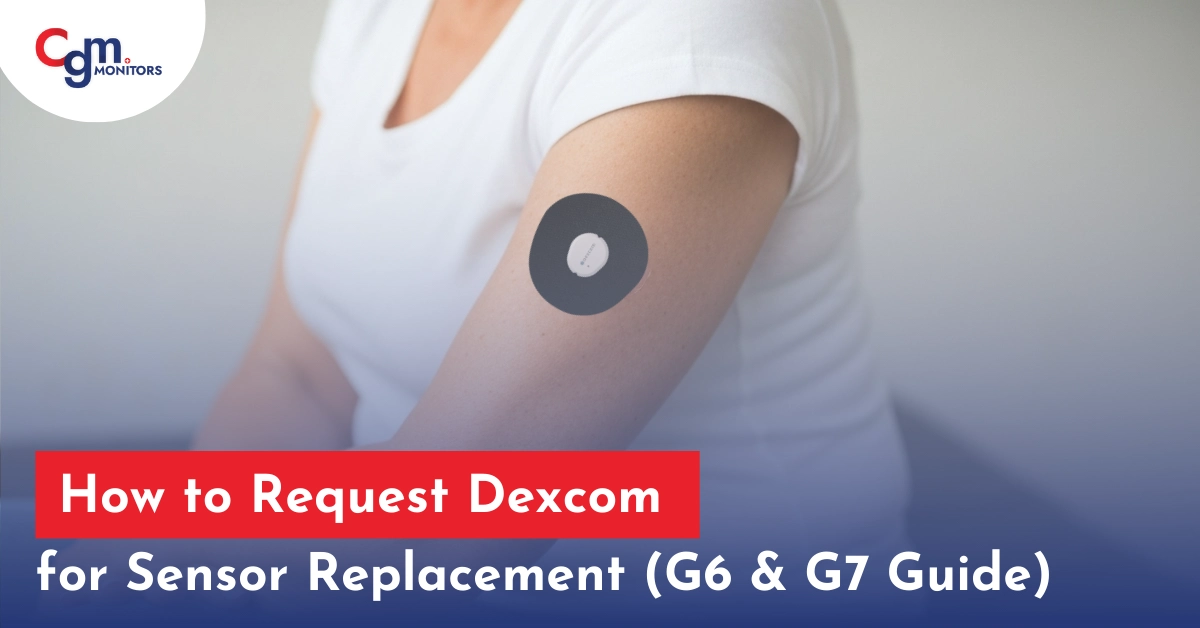
Continuous glucose monitoring (CGM) systems, such as Dexcom or Freestyle Libre CGM sensors, assist people with diabetes and let them monitor their blood sugar levels in real time. These CGM systems consist of a small CGM sensor that detects glucose levels from interstitial blood through its micro-needle and transmits this data to either a receiver or a compatible mobile phone. Each sensor lasts for a specific time span, e.g., 10 days, 14 days, or 15 days. Dexcom sensors usually last for up to 10 days; thus, correct Dexcom sensor replacement holds significant importance. Here, we have specifically discussed Dexcom G7 Sensor Replacement and basic troubleshooting.
When to Replace Dexcom Sensor: G6, G7 (standard) and New Dexcom G7 (Premium)
The frequency of Dexcom sensor replacement depends on the Dexcom model:
- Dexcom G6 Sensor is designed to last as long as 10 days of continuous usage.
- Standard Dexcom G7 Sensor has a wear duration of up to 10 days, with a grace period of 12 hours after the sensor expiration. You’ll get alerts telling you when exactly your grace period will expire. You can either end the sensor early or wait till it ends automatically.
- New Dexcom G7 sensor, launched in December and also listed on CGM Monitors, offers you 15 days of weartime with 12 12-hour grace period. It means you have to replace it with a new one every 15 days of time.
Removing the sensor within the recommended interval will ensure the highest performance and the most precise glucose readings. Not replacing it on time can result in incorrect readings and gaps in data.
Dexcom G7 Sensor Replacement: How to Do
Stopping and/or replacing the Dexcom sensor is a simple procedure. Dexcom G7 sensor replacement time comes with alerts; your sensor has completed its lifespan or is in the grace period. When in the grace period, you have the option to either stop the sensor early and insert a new CGM sensor, stop it only, or let it complete the 12 grace hours. Once the sensor expires, you will receive an alert to apply a new sensor. The following are the steps to remove the old and insert a new G7 sensor:
Stopping the Sensor:
If you want to stop the sensor only and are not ready to replace the sensor right away, simply stop the sensor session by opening the Dexcom app and selecting “Stop Sensor.” Once the sensor is stopped, you can peel it off.
- Peeling off the old sensor: Gently peel off the patch of adhesive. If necessary, you can use an adhesive remover to facilitate removal.
Standard Dexcom G7 sensor replacement frequency for standard is just 10 days. It means you need 3 sensors for each month, while the new Dexcom G7 sensor (only for Adult) has 5 days extra weartime than the old one. Diabetes patients need just 2 sensors to fulfil a month supply.
Applying a New G7 Sensor:
To start your new sensor, grab a new applicator and enter a sensor ID by using the camera to scan the code. Now, insert the new sensor:
- Clean the back of your upper arm with an alcohol wipe. Let the skin dry completely.
- Unscrew the cap. Press and hold the applicator against the skin and push the button.
- Your sensor has been applied.
- Wait for your sensor to pair. Tap ‘OK’ on your pairing complete screen and let the sensor warm up.
Keep your phone within 20 feet during the sensor warm-up. You can review the in-app instructions if needed. Once the sensor is applied, you can apply a CGM patch over it for added safety of your sensor.
If Removing a Dexcom G6 CGM
Disconnect the Transmitter (If reuseable) by clicking the latch until it is released and then carefully remove the transmitter. This is because in Dexcom G6, the transmitter is externally attached to the sensor, unlike the Dexcom G7, which has the transmitter installed within the sensor.
Dexcom Sensor Failure: Causes and Troubleshooting
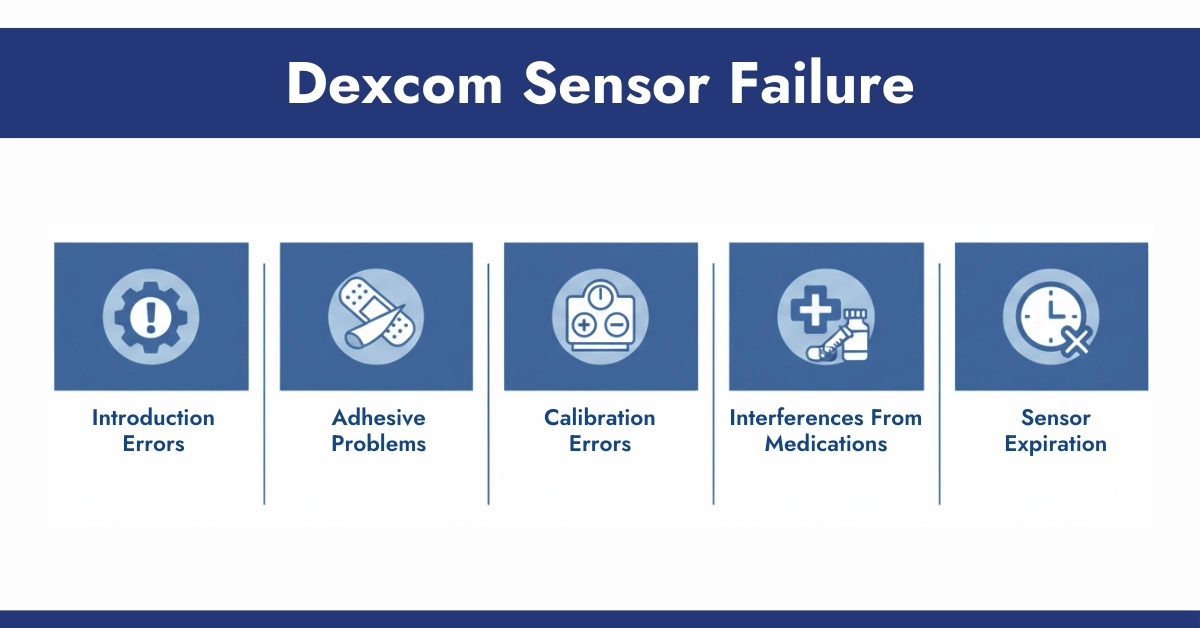
Sometimes, users might suffer sensor failures, which can lead to inaccurate readings or even an entire shutdown. The most common causes are:
- Introduction Errors: When the sensor isn’t properly installed, it may give inaccurate readings or no readings at all.
- Adhesive Problems: Sensors that are loose could not remain in position, causing data irregularities.
- Calibration Errors: While Dexcom G7 (as well as G6) does not require calibration by hand, inaccurate readings could occur if the sensor is defective.
- Interferences From Medications: According to a study shared by PubMed, “Acetaminophen (paracetamol) interferes with continuous glucose monitor (CGM) sensing, resulting in falsely elevated CGM glucose values.”
- Sensor Expiration: If you use a sensor after the expiration date, it could result in failure.
Troubleshooting Tips:
- Try restarting your device to determine if the issue is resolved.
- Verify that the sensor is placed correctly and is fully attached to the skin. You may use a CGM patch or a CGM sticker to keep your CGM sensor intact and firmly attached to your skin.
- If you continue to experience issues, call Dexcom Customer Service for assistance in troubleshooting or a replacement sensor.
In the case of Dexcom G6, check the battery life of your transmitter as well.
Why Following the Schedule Matters for Dexcom G7
- Staying within the 10-day plus 12-hour window ensures accurate and reliable glucose readings.
- Extending beyond this period can result in inaccurate readings, sensor failure, or data gaps, which may affect diabetes management.
- A new sensor provides fresh adhesive and optimized sensing, reducing the risk of errors or detachment.
Conclusion
Unlike predecessors, the Dexcom G7 does not just expire, instead, it provides you 12 grace hours after your sensor life is completed. You start getting alerts when your CGM sensor lifespan is completed or you’re in a grace period. The G7 has a much lower warm-up time of 30 minutes and has a transmitter installed within the sensor. To keep CGM sensors firmly in place, many find it useful to apply CGM patches over the sensors. These sensors are breathable, waterproof, and provide enough stretch to support your active lifestyle.
Frequently Asked Questions
When should I replace my Dexcom G7 sensor?
For the standard Dexcom G7, replace it after 10 days of use, plus the extra 12-hour grace period if you need more time. For the new Dexcom G7 sensor, it is recommended to remove it after 15 days with a 12-hour grace period. Diabetic patients usually swap during the grace period when it’s convenient, so they may never lose readings.
How do I replace my Dexcom G7 sensor?
Stop the old sensor in the app, gently peel it off like a bandage, then insert the new one with the applicator and scan the code to pair and start warmup. It takes a couple of minutes once you’re used to it—clean the site first and use an overpatch for better adhesion.
How long does it take to replace a Dexcom G7 sensor?
The whole process usually takes 5–10 minutes from stopping the old sensor to starting the new warmup. The warmup itself is 30 minutes before readings begin, so plan around that.
What should I do before replacing my Dexcom G7 sensor?
Choose a clean, dry insertion spot (such as the back of the upper arm), gather your new sensor and applicator, and wash the area with soap or an alcohol wipe. Make sure the app is open and you have uninterrupted time for the 30-minute warmup.
Why is my Dexcom G7 sensor failing early and needing replacement?
Early failure can happen due to insertion issues, compression lows, defective sensors, or site irritation from sweat or movement. If the sensor fails before 10 days, contact Dexcom support—failed sensors are often replaced at no cost.
When should I order a new Dexcom G7 sensor for replacement?
Order your next supply about 1–2 weeks before your last sensor runs out to avoid gaps caused by shipping delays. Keeping 2–3 backup sensors on hand helps prevent interruptions.
Where can I get a replacement Dexcom G7 sensor?
For failed sensors, contact Dexcom support directly through the app or website. For routine refills, use your pharmacy, mail-order supplier, or Dexcom’s pharmacy service based on your insurance.
What are the Dexcom G7 instructions for use?
Follow the step-by-step setup, insertion, and usage guides available in the Cgm Monitors Website. The app’s built-in help covers most daily-use questions.
Where can I dispose of used Dexcom G7 sensors after replacement?
Dispose of the used sensor and applicator in regular household trash unless local regulations require sharps disposal. Many users place them in an old sharps container with other diabetes supplies for added safety.




I called in over 2 weeks ago to report a sensor that was defective as it wouldn’t fire from the container. I got the script to replace the sensor at the pharmacy, but the return package didn’t arrive for the defective one?? Could you help. as to what is the next step???
Hello Corinne. You are requested to please contact Dexcom customer service.