
Table of content
- Introduction
- Dexcom G7 Overview: Features and Benefits
- Omnipod 5 Overview: Smart Insulin Delivery System
- Does Omnipod Work with Dexcom G7 and Libre 2 Plus?
- How to Connect Omnipod 5 and Dexcom G7 – 15 Days
- Compatibility and Requirements for Proper Integration
- Customization Options with Dexcom G7 and Omnipod 5
- Omnipod 5 & Dexcom G7 Integration Problems
- More On Omnipod and Dexcom G7
- Conclusion
Introduction
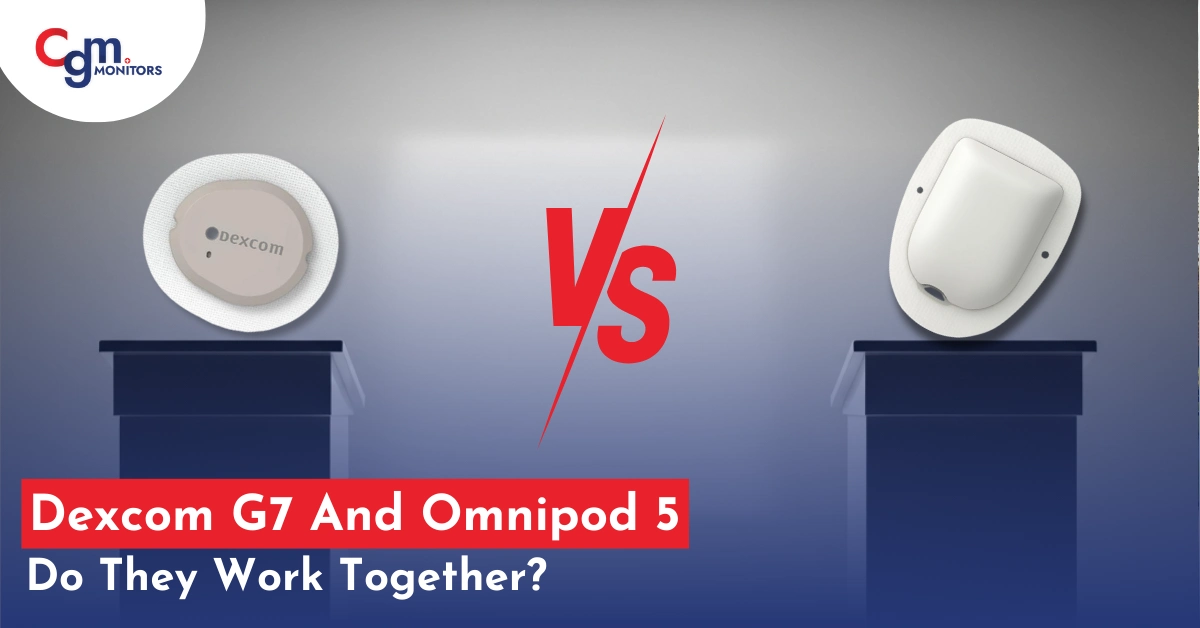
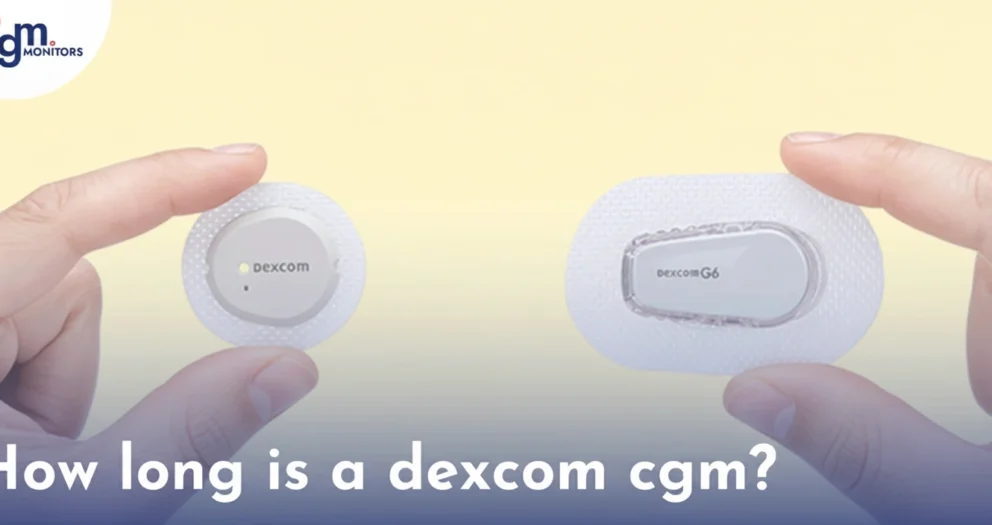
Dexcom G7 is the latest generation of Continuous Glucose Monitors (CGMs) available today and boasts advanced features, such as approx. 60% smaller than Dexcom G6, a 30-minute warm-up time, and a 12-hour grace period after your sensor expires. On top, the Omnipod 5 and Dexcom G7 now work together. Let’s examine the functionalities of these devices with an overview and connecting guide.
Note: After Dexcom G6, and Dexcom G7, Omnipod 5 now pairs with the FreeStyle Libre 2 Plus Sensor as well.
Dexcom G7 Overview: Features and Benefits
The Dexcom G7 is an innovative and highly advanced continuous glucose monitoring (CGM) system that revolutionizes the way individuals manage their diabetes. With its cutting-edge technology and user-friendly design, the Dexcom G7 empowers people with diabetes to monitor their glucose levels accurately and conveniently.
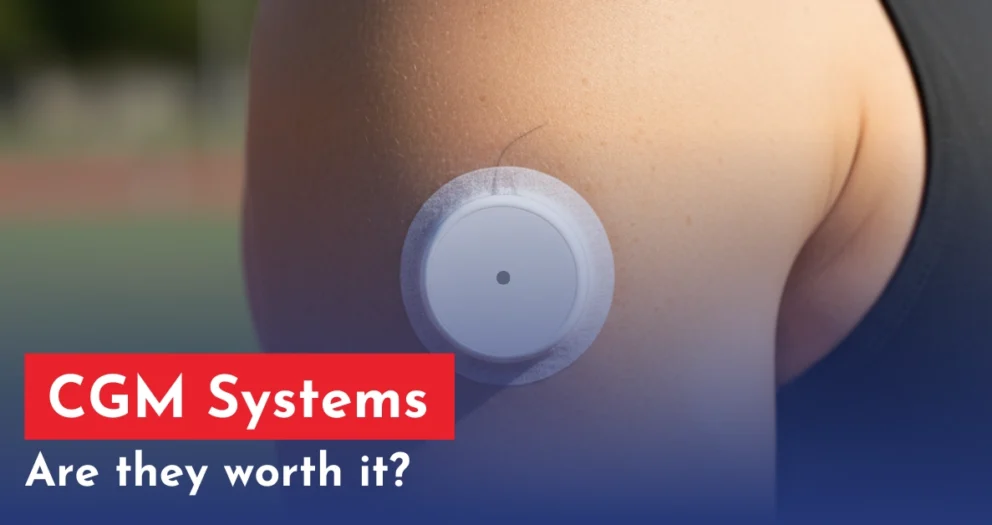
Dexcom G7 features are significantly beneficial for the users. The G7 sensor, a small and discreet device, is painlessly applied to the skin, eliminating the need for traditional fingerstick blood glucose testing.
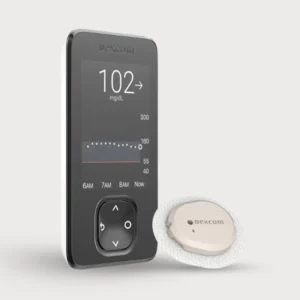
It wirelessly transmits real-time glucose data to a sleek and compact receiver or a Dexcom G7 compatible smart device, ensuring seamless integration into users’ lives. Its spontaneous interface helps users understand their glucose trends easily, set alerts, and make informed decisions about their diabetes management.
Omnipod 5 Overview: Smart Insulin Delivery System
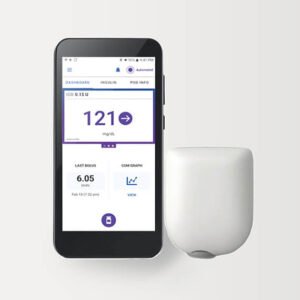
The Omnipod 5 stands out as a tubeless, waterproof, and discreet wearable AID system, saving users from the constraints of traditional insulin pumps. Its wireless communication with a handheld device, or an Omnipod 5 compatible smartphone, enables seamless control and monitoring of insulin delivery. Such integration allows you to monitor your glucose levels and manage your glucose dosage right from your compatible smartphone
The Omnipod 5’s advanced algorithm predicts and helps prevent hypoglycemic and hyperglycemic events. However, in case of any issues, such as incorrect settings, this may still lead to hyper- or hypoglycemia.
The Omnipod 5 supports an active lifestyle by eliminating tubing and providing a spontaneous user experience – keep moving.
Does Omnipod Work with Dexcom G7 and Libre 2 Plus?
Yes, it will be good news for the diabetic community that Omnipod now works with Dexcom G7 CGM and Libre 2 Plus, according to the fresh updates. Previously, the Omnipod 5 was only compatible with the old model Dexcom G6, which made many users hesitate before upgrading to the newer Dexcom G7. But now, integration between Omnipod 5 and Dexcom G7 or Libre 2 Plus is officially available.
Now your Omnipod 5 can receive real-time glucose readings directly from both Libre 2 Plus and Dexcom G7 (you cannot use them simultaneously) and automatically adjust insulin delivery as you did with G6. Overall, this upgrade brings a smoother and more advanced diabetes management experience — combining tubeless insulin delivery with the latest CGM technology.
Important Alert! According to the latest updates, Dexcom will phase out the manufacturing of Dexcom CGM G6 on July 1, 2026 (expected), and this is intentional, not a sudden shutdown. The reasons behind this are technology evolution, improved production of new Dexcom sensors, new diabetes tech is being developed for the latest CGM Dexcom G7, and the removal of the integration step of sensors and transmitters. To mitigate this problem, you have to switch from Dexcom G6 to the latest 15-day Dexcom G7 that is available on CGM monitors with insurance support.
How to Connect Omnipod 5 and Dexcom G7 – 15 Days
Yes, Dexcom has introduced 15 days version of G7, which means you can use 10 days standard G7 for both adults and children and the G7 15-day sensor only for adults. Integration with omnipod 5 are same for both sensors. Here’s how to set up the Dexcom G7 with Omnipod 5:
1. Check Compatibility: Both systems support integration, but you’ll need the latest version of each.
2. Install Apps: Download the Omnipod 5 app and the Dexcom G7 app on your phone. Ensure your phone is compatible with both apps (check the Omnipod website for iPhone and Android compatibility).
3. Link the Devices:
- Open the Omnipod 5 app and go to settings.
- Select your sensor (Dexcom G7, G6, or Libre 2 Plus).
- Pair the devices by following the on-screen instructions.
Linking the Sensor with the OmniPod device later:
- Home screen > Menu Button (3 lines on the top right corner).
- Manage Sensor > Add New.
- Select the ‘Take Photo’ option, or ‘Enter Code Manually’.
- Enter the Pairing Code (the large 4-digit code on the top right corner of the applicator in case of Dexcom G7).
- Enter the Serial Number (the long number excluding the first 2-digit number in brackets).
- Save and confirm. This shall begin connecting your pods, and it can take up to 20 minutes.
Start Your Journey: Once linked, the Omnipod 5 will automatically adjust insulin based on the data received from the Dexcom G7, making insulin management smarter and more efficient.
Worry for Libre 2 Plus Integration? Simply follow the same steps above for the FreeStyle Libre 2 Plus sensor, and you will adjust your insulin delivery accordingly.
Compatibility and Requirements for Proper Integration
While Dexcom G7 does work with Omnipod 5, there are important details to know:
Dexcom App Requirement
To use G7 with Omnipod 5, you must use the Dexcom G7 app on a compatible smartphone — the Dexcom G7 receiver cannot be used for automatic connectivity with Omnipod’s system. This means you’ll need the app active and Bluetooth enabled on your smartphone.
Pod Compatibility
Ensure your Omnipod 5 Pods are the versions labeled as compatible with Libre 2 Plus, Dexcom G6 and G7 sensors. Standard Pods that only reference G6 may not work with G7.
Smartphone Device Compatibility
Not all phones support both Omnipod 5 and Dexcom G7 together — check compatibility lists from both Dexcom and Omnipod before relying solely on a phone for connectivity.
Customization Options with Dexcom G7 and Omnipod 5
Customize settings when integrating the Dexcom G7 with Omnipod 5. You can;
- Adjust insulin sensitivity and target glucose ranges.
- Set alerts for high or low glucose levels.
- Modify insulin delivery preferences for different times of day.
While you do have the option to change settings, do NOT do it unless you are properly trained; otherwise, it may result in low sugar (hypoglycemia) or high sugar (hyperglycemia).
Omnipod 5 & Dexcom G7 Integration Problems
CGM monitors are the trusted DME supplier in the USA, and that’s why the diabetic community shares their problems related to conectivity and we provide expert solutions accordingly. Here are what they reported and what we delivered in support.
Phone App Not Supporting G7
Some users upgraded from G6 to G7 and find out that their Omnipod 5 iPhone app does not support G7 yet. What does it mean? it means G7 works with the controller but NOT with the Omnipod phone app, and that’s why they are not showing any readings on pthe hone But controller still shows glucose.
Solution: Use the Omnipod 5 controller instead of the phone app until full compatibility updates are released.
Controller Shows Readings — Phone Doesn’t
It is another connectivity problem reported on our platform that G7 connects to pump/controller but fails to sync with the mobile app.
Respected Reasons
- The sensor (G6, g7 and Libre 2 Plus) sends data via Bluetooth.
- Devices connect independently.
So one works… the other doesn’t.
Solution: First, restart Bluetooth on phone, make sure to force close the dexcom app in app settings and after that reopen and wait 5–10 minutes for reconnection
Bluetooth Priority Conflict
- Issue: Omnipod connects first, blocking phone connection.
- Solution: Keep your compatible phone within 5–10 feet during pairing OR Pair phone first before activating pod when possible
App Login / Sync Errors
- Issue: Dexcom app fails to sync despite a working sensor.
- Solution: Simply log out and log back in, and update the latest Dexcom app from Apple or Google Play Store and make sure you have a stable wifi or data connection before doing it.
Android Compatibility Issues
- Issue: Compatibility problems mostly reported among those who are using android and they reported repeatedly disconnecting.
- Solution: Simply go to App settings and disable battery optimization for the Dexcom app and turn off adaptive Bluetooth settings.
iPhone Integration Limitations
- Issue: G7 works on controller but not Omnipod iPhone app.
- Solution: Continue therapy using the controller and watch for any firmware/app updates enabling G7 integration.
Pod Wastage During Troubleshooting
- Issue: Pod replaced unnecessarily during signal issues.
- Solution: First, checkthe Dexcom connection first before replacing the pod OR Reboot controller before the pod change.
More On Omnipod and Dexcom G7
Here’s what the Dexcom G7 and Omnipod 6 integration brings to the table for users:
- Automatic Insulin Adjustments: With the SmartAdjust technology, your insulin delivery is automatically adjusted based on the real-time glucose data from the Dexcom G7.
Warning: Do NOT use this SmartAdjust technology for individuals who need < 5 units a day or who are below 2 years of age. - Remote Monitoring: You can monitor your glucose levels from your phone, and caregivers can track your progress through their own devices.
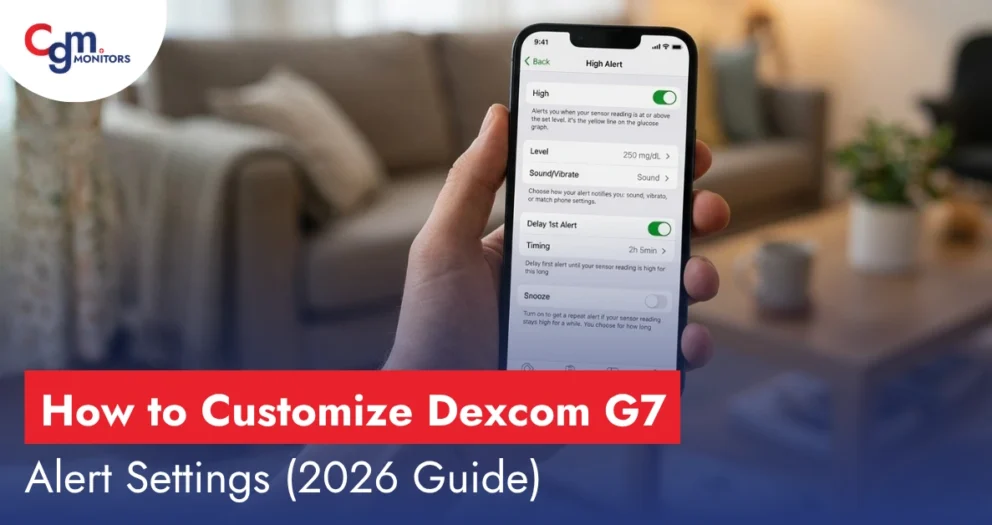
- Customizable Alerts: The Omnipod 5 and Dexcom G7 can send alerts for high or low glucose, allowing you to take action quickly.
- Simplified Insulin Management: The integration streamlines the process of managing insulin.
Different From Their Predecessors
Dexcom G6 vs G7: Compared to the Dexcom G6, the G7 is smaller, more accurate, and easier to use. It features:
- Faster warm-up time (just 30 minutes).
- 10-day sensor wear time with a 12-hour grace period (up from 7 days with G6).
- A smaller sensor size makes it more discreet.
Omnipod 5 vs Omnipod Dash: The Omnipod 5 introduces automatic insulin adjustments based on Dexcom G7 data, unlike the Omnipod Dash, which requires manual input. Key improvements:
- Integration with Dexcom G7 for automatic insulin adjustments.
- Personalized settings for more control.
- Enhanced app experience for better tracking.
If you want to buy Dexcom G7 at an affordable price, you can visit our website and place your order today. We can also provide you with an Omnipod 5 G6 Intro kit that now works with Dexcom G7.
Conclusion
The Dexcom G7 and Omnipod 5 integrate seamlessly, offering multiple features that help simplify your diabetes management. Make sure you buy Omnipod 5 that says ‘Compatible with Dexcom G6 and Dexcom G7’.
This blog primarily discusses the Dexcom G7 and Omnipod 5; we have thus emphasised them. The Omnipod 5 also works with the Dexcom G6 and Freestyle Libre 2 Plus sensors.
Frequently Asked Questions
Does Omnipod 5 work with Dexcom G7?
Yes, Omnipod 5 is compatible with Dexcom G6, Dexcom G7, and Freestyle Libre 2 Plus sensors. Based on glucose readings from the sensor, the AID system makes real-time insulin adjustments.
Can I select custom insulin delivery settings with Omnipod 5 and Dexcom G7?
Yes, you can customize insulin delivery preferences, alerts, and target glucose levels, ensuring the best fit for your lifestyle. However, doing it without proper training may result in low sugar (hypoglycemia) or high sugar (hyperglycemia).
When will Dexcom G7 be compatible with Omnipod 5?
According to rumors, the Dexcom G7 is expected to receive clearance for compatibility with the Omnipod 5 around the summer of 2024. However, specific timelines may change, so it’s best to stay updated with official announcements from Dexcom and Insulet.
How will G7 integrate with Omnipod 5?
The integration of the Dexcom G7 and the Omnipod 5 will require approval from the FDA and software updates from Insulet, the manufacturer of the Omnipod 5. Until compatibility is established, users of the Omnipod 5 insulin pump will need to continue using their current device to monitor their glucose levels.
What are the benefits of G7 and Omnipod 5 working together?
The combination of the Dexcom G7 and the Omnipod 5 promises a more streamlined experience in managing diabetes. Once they are compatible, users can have all their data in one place, receive real-time alerts, and gain a better understanding of their glucose levels. This integration contributes to better diabetes management and overall well-being.
Where can I buy Dexcom G7 and Omnipod 5?
To ensure you purchase original and high-quality devices, it is important to buy from reputable vendors. You can visit our website to buy the Dexcom G7 at an affordable price. We also offer the Omnipod 5 G6 Intro kit without burdening your budget.
Top Selling Products
Featured products




do I have to start them at the same time?
No, you do not need to start them together. However, you need to have the newer pods that say they are compatible with Dexcom G7. If you have the same new pods with you, try these troubleshooting steps;
Step 1: Hold the Omnipod 5 near to your Dexcom G7 sensor on your body.
Step 2: Restart the Omnipod PDM.
Step 3: Switch to airplane mode on your iPhone and then toggle it off.
Step 4: Toggle on and off Bluetooth on your iPhone.
Step 5: Turn off the Dexcom receiver that you may be using in addition to your iPhone and this should do the job.
Hope this helps! Let us know if this resolves your issue.