
Table of content
- What Are the Default Dexcom G7 Alert Settings?
- How to Change Dexcom G7 Alert Settings Step-by-Step
- How to Set Dexcom G7 Low Glucose Alert Thresholds
- How to Customize Dexcom G7 High Glucose Alerts
- What Are the Best Dexcom G7 Alert Settings for Nighttime?
- Does Sensor Placement Affect How Reliable Your Alerts Are?
- How to Reduce Dexcom G7 Alarm Fatigue
- Why Are My Dexcom G7 Alerts Not Working?
- How to Turn Off Dexcom G7 Alerts (When Appropriate)
- Conclusion:
- Disclaimer:
- Frequently Asked Question
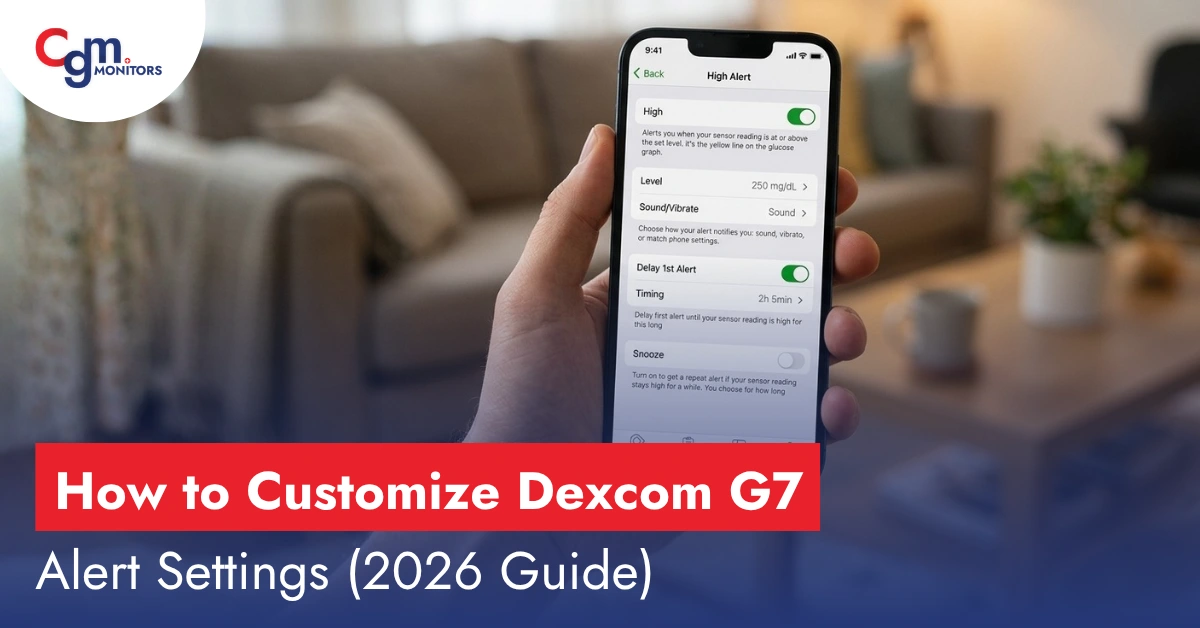
Your Dexcom G7 alert settings can be customized directly inside the Dexcom G7 app within seconds. Go to Menu → Alerts → select any alert to adjust thresholds, sounds, and snooze duration. It takes under 60 seconds, yet most users never do it, and that is exactly why alarm fatigue is the number one CGM complaint in 2026.
Wrong alert settings do not just annoy you. They cause you to silence critical warnings, miss dangerous lows, and lose trust in your device. This guide fixes all of that with settings that actually match your real life.
What Are the Default Dexcom G7 Alert Settings?
Initially, Dexcom G7 comes with these defaults:
- Urgent Low: 55 mg/dL (cannot be disabled, FDA requirement)
- Low Alert: 80 mg/dL
- High Alert: 200 mg/dL
- Rise Rate: 3 mg/dL/min
- Fall Rate: 3 mg/dL/min
- Signal Loss: On
The problem? These defaults are one-size-fits-all. According to the American Diabetes Association (ADA), individualized glucose targets vary significantly based on age, insulin type, and lifestyle. A threshold that works for a Type 2 patient may trigger constant false alarms for an active adult on a closed-loop system.
How to Change Dexcom G7 Alert Settings Step-by-Step
Steps to customize:
- Open the Dexcom G7 app
- Tap the Menu icon (top left)
- Select Alerts
- Tap the alert you want to edit (Low, High, Rise, Fall, etc.)
- Adjust threshold, sound, and snooze time
- Tap Save
2026 Update: Newer Dexcom G7 app versions now display pattern-based alert suggestions using your personal glucose history. Most users dismiss these popups. Please do not. This feature recommends threshold adjustments based on your actual behavior, more accurate than any manual guess. At CGM monitors we cover all DME suppliers
How to Set Dexcom G7 Low Glucose Alert Thresholds
Dexcom G7 low alert threshold settings can be set between 60-100 mg/dL (in 1 mg/dL increments). The Dexcom G7 urgent low alert is fixed at 55 mg/dL and cannot be turned off.
Best practices:
- Set your Low Alert 15-20 mg/dL above your true low threshold to give yourself treatment reaction time.
- If you experience frequent nocturnal lows, set a slightly higher threshold at night (e.g., 80 mg/dL) than during the day.
- Use a unique alarm tone for urgent lows vs. standard lows, so you know instinctively how serious the alert is.
The Urgent Low Soon alert (signals a projected drop to 55 mg/dL within 20 minutes) is one of the most underused yet most valuable features. Enable it under Alerts → Urgent Low Soon.
Need a Dexcom G7? Whether you’re getting your first sensor or upgrading your system, CGM Monitors insurance experts handle prior authorization, eligibility checks, and delivery, so you don’t wait weeks. Click Here to Check Your Insurance Eligibility Now
How to Customize Dexcom G7 High Glucose Alerts
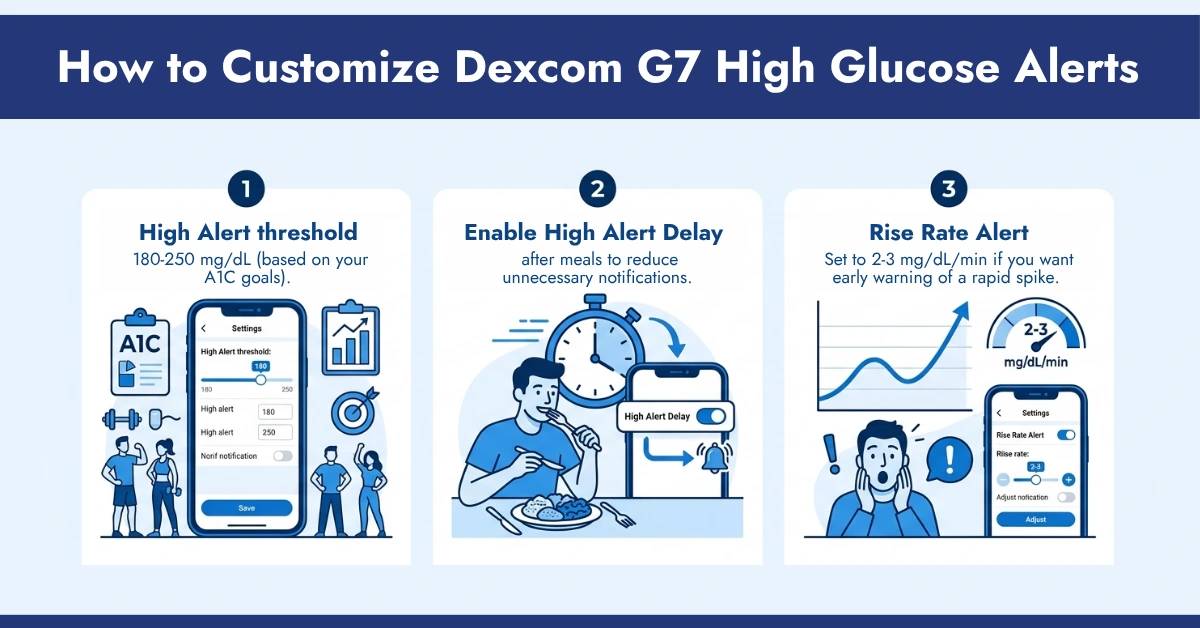
Dexcom G7 high glucose alerts can be set between 120-400 mg/dL. The key feature most users overlook is the Dexcom G7 high alert delay; this delays the alarm from sounding for 30 minutes after a meal to avoid post-meal spike alerts that aren’t clinically meaningful.
Recommended setup for most users:
- High Alert threshold: 180-250 mg/dL (based on your A1C goals).
- Enable High Alert Delay after meals to reduce unnecessary notifications.
- Rise Rate Alert: Set to 2-3 mg/dL/min if you want early warning of a rapid spike.
If you use AID systems (Tandem Control-IQ or Omnipod 5):
- High alerts may become redundant.
- Pump corrects before alert triggers.
- Excess alerts increase alarm fatigue.
Many clinicians now recommend higher thresholds (200-250 mg/dL) in these cases.
What Are the Best Dexcom G7 Alert Settings for Nighttime?
Dexcom G7 alert settings for nighttime are where customization matters most. Interrupted sleep raises cortisol, which raises blood sugar, a cruel irony for people already managing glucose.
| Alert | Daytime | Nighttime |
| Low Alert | 75 mg/dL | 80 mg/dL |
| High Alert | 180 mg/dL | 250 mg/dL |
| Rise Rate | On | Off |
| Fall Rate | On | Keep On |
| Urgent Low Soon | On | Keep On |
| Sound | Medium | Vibrate or Low |
How to automate nighttime switching:
- Go to Menu → Alerts → Alert Schedule.
- Create a Nighttime Profile with your quieter settings.
- Set it to activate automatically between your sleep hours.
Critical 2026 warning: If you receive Dexcom G7 alerts on an Apple Watch or Wear OS smartwatch, alert behavior follows the watch’s notification settings, completely separate from your phone. This is the most reported and least discussed CGM problem in 2025 and 2026.
Users configure their phone perfectly, put their watch on Silent, and miss nocturnal lows. Always configure wearable notification permissions separately.
Does Sensor Placement Affect How Reliable Your Alerts Are?
Yes, and this is something most alert-tuning guides skip entirely. Even a perfectly configured alert schedule won’t help if the sensor itself is producing inconsistent readings, because compression lows, signal dropouts, and delayed trend arrows are often caused by where the sensor is placed rather than how the alerts are set.
A few placement-related issues that directly impact alert accuracy:
- Sleeping on top of the sensor can cause “compression lows”, false low readings that trigger Urgent Low alerts in the middle of the night.
- Sensors placed near areas with heavy movement (waistband, tight clothing) are more prone to signal loss alerts.
- Site rotation matters for long-term accuracy; scar tissue from overused sites can affect sensor adhesion and readings.
If you’re getting frequent false alerts even after adjusting thresholds, the issue may be the placement site itself rather than the settings. For a full breakdown of FDA-cleared placement zones, rotation schedules, and site-specific pros and cons, see our detailed guide on Dexcom G7 placement sites.
How to Reduce Dexcom G7 Alarm Fatigue
Alarm fatigue is real. A 2024 study published in Diabetes Technology & Therapeutics found that CGM users who received more than 12 alerts per day were significantly more likely to silence all alerts permanently, defeating the device’s entire purpose.
To reduce Dexcom G7 alarm fatigue:
- Raise high alert threshold if overly sensitive.
- Enable snooze (15-240 minutes).
- Turn off non-essential rate alerts.
- Use day/night alert profiles.
- Avoid frequent repetitive alarms.
- Don’t disable Urgent Low Alert; it is your core safety signal.
Why Are My Dexcom G7 Alerts Not Working?
Dexcom G7 alerts not working is one of the most searched troubleshooting questions in 2026.
Common causes:
- Phone Do Not Disturb (DND) is overriding app alerts: Dexcom must be added as a DND exception on both iOS and Android.
- Critical Alerts are not enabled: On iPhone, go to Settings → Notifications → Dexcom G7 → enable Critical Alerts.
- App notifications are disabled at the OS level: Check Settings → Notifications → Dexcom G7 → Allow.
- Bluetooth disconnection: Alerts won’t fire if the sensor has lost connection; check signal status.
- Alert snooze is still active: A previously snoozed alert won’t re-fire until the snooze window ends.
- Outdated app version: Dexcom G7 notification troubleshooting often resolves with a simple update.
Pro tip:
The Dexcom Follow app used by caregivers has completely separate alert settings from the wearer’s device. Parents managing a child with Type 1 diabetes may be receiving alerts the child’s device is not, or the reverse.
How to Turn Off Dexcom G7 Alerts (When Appropriate)
You can turn off most alerts except the Urgent Low. To disable:
- Go to Menu → Alerts → select alert → toggle Off.
- High Alert, Rise Rate, Fall Rate, and Signal Loss can all be disabled.
- Alert Schedules let you silence alerts automatically during specific hours without turning them off permanently.
Only disable alerts after consulting your endocrinologist. The Centers for Disease Control and Prevention (CDC) notes that undetected hypoglycemia is a leading cause of preventable diabetes complications.
Conclusion:
Customizing Dexcom G7 alert settings is not optional; it is essential for better sleep, fewer false alarms, improved glucose awareness, and reduced alert fatigue
The goal is simple:
- Fewer unnecessary alerts.
- More meaningful warnings.
- Better diabetes control without stress.
At CGM Monitors, we don’t just explain CGM settings; we also help patients get access to the device itself through verified insurance processes, fast shipping, and FDA-approved suppliers across the U.S. Our mission isn’t only to provide information but also to ensure patients can actually access the devices they need without unnecessary barriers.
Disclaimer:
This guide is meant to help you understand Dexcom G7 settings and should not be taken as medical advice. Dexcom G7 settings should always be adjusted with your healthcare provider. Always seek professional medical guidance for diabetes management. Pictures used in this guide are not real; they are created with the help of AI.
Frequently Asked Question
What is the lowest threshold I can set for a Dexcom G7 low alert?
The lowest customizable Low Alert can be set as 60 mg/dL. The Urgent Low alert is fixed at 55 mg/dL and cannot be changed or disabled, as required by the FDA.
Can I have different Dexcom G7 alert settings for day and night?
Yes. Use the Alert Schedule feature in the Dexcom G7 app to create separate profiles for daytime and nighttime, including different thresholds, sounds, and snooze durations.
Why does my Dexcom G7 not alert me even though alerts are turned on?
The most common cause is iPhone or Android Do Not Disturb mode blocking app notifications. Enable Critical Alerts for the Dexcom app in your phone’s notification settings to bypass DND for urgent alerts.
How long can I snooze a Dexcom G7 alert?
Dexcom G7 snooze alert settings allow between 15 and 240 minutes. During a snooze, the Urgent Low alert can still override and sound if glucose drops to a critical level.
Does the Dexcom G7 high alert delay affect the urgent low alert?
No. The High Alert Delay only applies to high glucose notifications. Urgent Low and Urgent Low Soon alerts are never delayed regardless of your other settings.


Write a comment
Your email address will not be published. All fields are required