
Table of content
- What Is Dexcom?
- Which Dexcom Devices Are Still Available in 2026?
- What Is the Dexcom G7 and How Does It Work?
- Is the Dexcom G6 Still Available & What Should Current Users Do?
- What Is Dexcom Stelo, and Who Is It For?
- How Do Dexcom G7, G7 15 Day, G6, and Stelo Compare?
- Where Do You Place a Dexcom Sensor?
- How Do You Set Up a New Dexcom Sensor?
- What Phones, Watches, and Pumps Work With Dexcom?
- Does Dexcom Need to Be Calibrated?
- What Do You Do When Dexcom Isn’t Working? (Plus 2026 Safety Notices)
- How Do You Replace or Remove a Dexcom Sensor?
- How Accurate Is Dexcom?
- How Much Does Dexcom Cost, With and Without Insurance?
- Which Dexcom Should You Buy?
- What Accessories Do You Need With Dexcom?
- What Are the Most Common Dexcom Problems?
- What Are the Best Practices for Wearing Dexcom?
- Conclusion
- Frequently Asked Questions
If you’ve typed “Dexcom” into Google and landed here, you’re probably in one of a few places: comparing CGMs before a doctor’s appointment, holding a new sensor and wondering where it goes, staring at a “sensor failed” message, or trying to figure out why your G6 prescription suddenly needs to change. This guide is built to answer all of it in one place, what each current Dexcom device does, where it’s approved to go on your body, what it costs, how to fix it when it acts up, and what’s actually changing in the Dexcom lineup in 2026.
Quick answers, if you’re in a hurry:
- The current Dexcom lineup is the Dexcom G7 (ages 2+), the newer Dexcom G7 15 Day (ages 18+), and the over-the-counter Stelo biosensor.
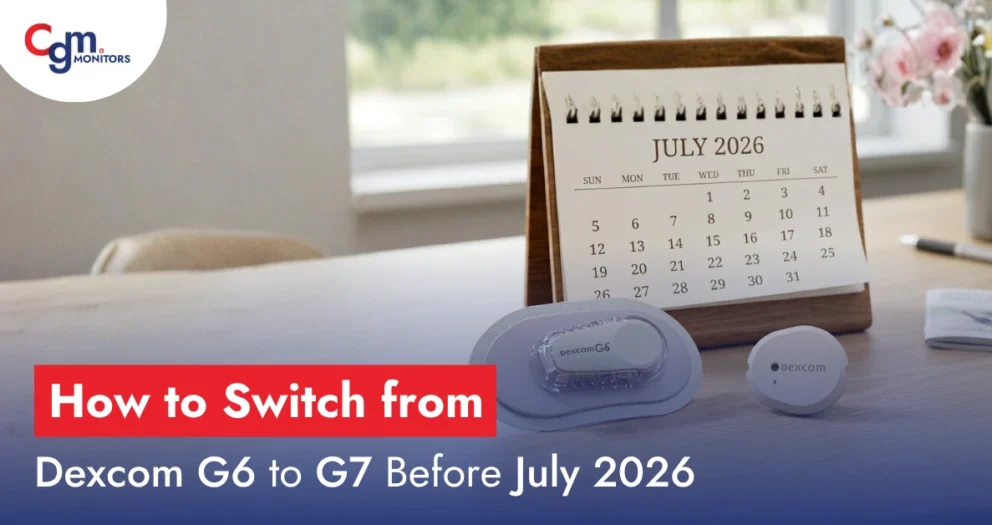
- Dexcom G6 is being discontinued. Dexcom stopped manufacturing new G6 systems as of July 1, 2026. If you’re still on G6, talk to your doctor about switching now.
- In the US, Dexcom G7 and G7 15 Day are FDA-cleared for the back of the upper arm only (plus the upper buttocks for kids 2-6 on the 10-day G7), not the abdomen, unlike G6.
- No calibration is required on any current Dexcom device.
- Most insured and Medicare patients pay $20 or less a month; CGM Monitors can check your specific coverage for free.
We supply Dexcom G6, G7, and Stelo supplies nationwide and bill insurance directly, so if a section below raises a question specific to your coverage, our diabetes care support team can pick up where this guide leaves off.
What Is Dexcom?
Dexcom is a San Diego medical device company that’s been building continuous glucose monitors (CGMs) for more than 25 years. A Dexcom CGM is a small sensor, worn on the body, that measures glucose in the fluid just under your skin every five minutes and sends the reading straight to your phone, smartwatch, or a dedicated receiver, no routine fingersticks required.
That’s the core difference from a traditional blood glucose meter (BGM):
- A BGM gives you one glucose number at one moment.
- A CGM gives you a continuous stream of numbers, trend arrows, and alerts, day and night.
For anyone managing type 1, type 2, or gestational diabetes, that constant visibility is what makes it possible to catch a low before it becomes dangerous or see how a specific meal actually affects your glucose.
Dexcom’s current U.S. product family covers a wide range of needs:
- Prescription CGMs: Dexcom G7 and Dexcom G7 15 Day, for people using insulin or at risk of hypoglycemia who need real-time alerts.
- An over-the-counter biosensor: Stelo for adults not using insulin who want glucose insights without a prescription.
- Dexcom G6, which is being phased out through 2026 as the company shifts everyone to G7.
CGM Monitors supplies all of the current Dexcom systems nationwide and bills most major insurance plans directly on your behalf, so you’re not stuck untangling prior authorization paperwork on your own.
Which Dexcom Devices Are Still Available in 2026?
Here’s the full picture of what’s current, what’s on its way out, and what’s already gone:
| Status | Product | 2026 Notes |
| Current | Dexcom G7 15 Day | Newest sensor; launched late 2025/early 2026; adults 18+ only. |
| Current | Dexcom G7 (10-day) | Standard sensor for ages 2 and up; still Dexcom’s most broadly compatible device. |
| Current | Stelo by Dexcom | Over-the-counter, no prescription; expanded to ages 2+ (not on insulin) via a June 2026 FDA clearance |
| Being phased out | Dexcom G6 | Dexcom stopped manufacturing new G6 systems as of July 1, 2026. Pharmacy/distributor stock may be available for a limited time afterward, but availability isn’t guaranteed. |
| Being phased out | Dexcom G6 Pro (professional/blinded version used in clinics) | Also discontinued as of July 2026; Dexcom has said a replacement product is in development. |
| Long discontinued | Dexcom G5, G4, and earlier SHARE-only receivers | No longer manufactured or actively supported. |
| Not sold in the U.S. | Dexcom ONE+ | Dexcom’s newest CGM is currently rolling out outside the U.S., across Europe and other international markets. It is not part of the current U.S. product lineup; if you’re in the U.S., G7, G7 15 Day, or Stelo are your options. |
What Is the Dexcom G7 and How Does It Work?
The Dexcom G7 is Dexcom’s flagship prescription CGM, a single all-in-one sensor and transmitter worn on the back of the upper arm that reads glucose every five minutes, requires no fingerstick calibration, and sends data to your phone, watch, or receiver. It’s the sensor Dexcom itself calls the most accurate glucose sensor on the market, and together with the newer G7 15-Day, it’s the product line Dexcom is putting almost all of its 2026 development behind.
Unlike Dexcom’s older systems, the G7 doesn’t have a separate reusable transmitter you have to move between sensors; the sensor and transmitter are built into one disposable, one-piece disc, applied with a single push of the applicator.
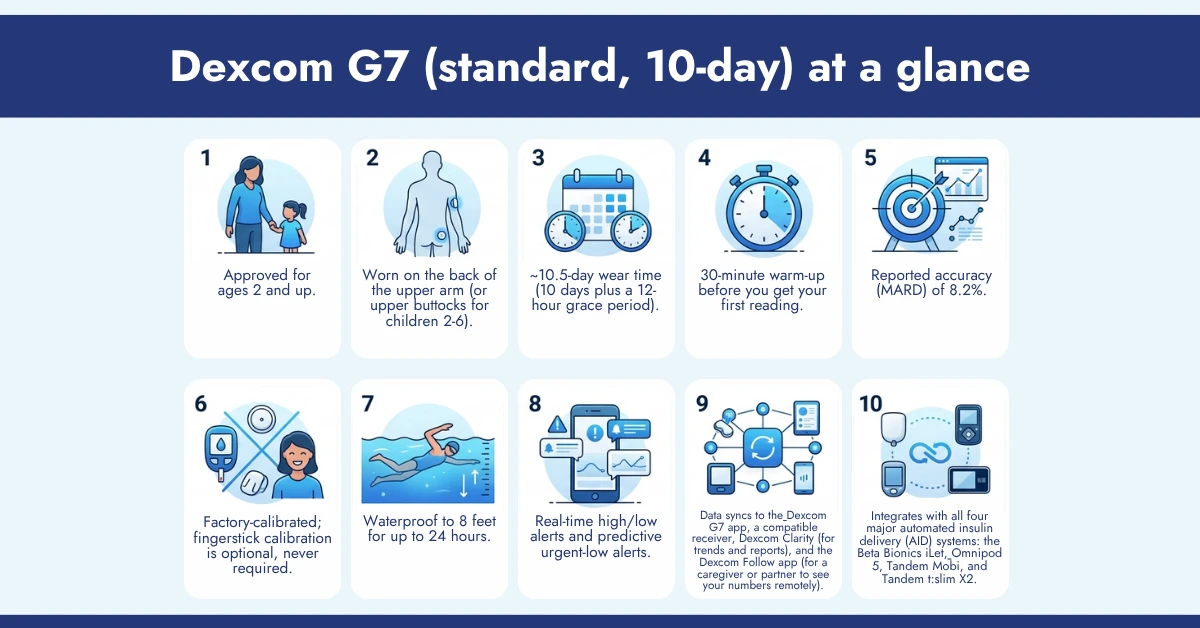
Dexcom G7 (standard, 10-day) at a glance:
- Approved for ages 2 and up.
- Worn on the back of the upper arm (or upper buttocks for children 2-6).
- ~10.5-day wear time (10 days plus a 12-hour grace period).
- 30-minute warm-up before you get your first reading.
- Reported accuracy (MARD) of 8.2%.
- Factory-calibrated; fingerstick calibration is optional, never required.
- Waterproof to 8 feet for up to 24 hours.
- Real-time high/low alerts and predictive urgent-low alerts.
- Data syncs to the Dexcom G7 app, a compatible receiver, Dexcom Clarity (for trends and reports), and the Dexcom Follow app (for a caregiver or partner to see your numbers remotely).
- Integrates with all four major automated insulin delivery (AID) systems: the Beta Bionics iLet, Omnipod 5, Tandem Mobi, and Tandem t:slim X2.
What’s in a Dexcom G7 starter kit? A typical starter order includes your first sensor(s), a Dexcom G7 receiver (with USB cable and power adapter), and instructions for pairing to the app. You don’t have to use the receiver if your phone is compatible; it’s there as a backup display or for anyone who prefers not to rely on a smartphone (and it’s required for some Medicare beneficiaries; more on that in the cost section below).
One quick terminology note: if you’ve been searching for a “Dexcom G7 reader,” Dexcom’s own term for its handheld display device is a receiver, not a reader (“reader” is the word Abbott uses for its FreeStyle Libre system). Functionally, the Dexcom G7 receiver does the same job, showing your glucose number and trend without needing a phone.
Dexcom G7 15 Day (What’s new in 2026): This is Dexcom’s newest sensor, and the biggest CGM launch the company has had in years.
- Approved for adults 18 and older only (children and teens stay on the standard 10-day G7)
- ~15.5-day wear time (15 days plus a 12-hour grace period), about 50% longer than the standard G7
- 60-minute warm-up
- Reported accuracy (MARD) of 8.0%, Dexcom’s most accurate sensor yet
- Uses the same transmitter-free design, app, and receiver as the standard G7 (existing receivers just need a free software update)
- Cuts the number of sensors you need each month from three down to two
- Compatible with the Beta Bionics iLet and Omnipod 5 at launch; Tandem t:slim X2 support is now available; Tandem Mobi compatibility is expected but not yet live as of this writing, check dexcom.com/compatibility for the current status before switching if you use a pump.
In clinical testing, Dexcom reports that about 74% of G7 15 Day sensors lasted the full 15 days, meaning roughly a quarter ended a bit early, worth knowing so an early “sensor failed” prompt doesn’t catch you off guard.
If your doctor has mentioned “the new G7” or you’ve seen “Dexcom G7 15 day” while shopping, this is the sensor they mean.
Is the Dexcom G6 Still Available & What Should Current Users Do?
Dexcom stopped manufacturing new G6 systems as of July 1, 2026. Existing pharmacy and distributor stock may still be sold for a period afterward, but Dexcom can’t guarantee availability going forward, and it’s recommending every remaining G6 user switch to G7 or G7 15 Day now.
The G6 was Dexcom’s mainstream CGM for years, and it works differently from the G7 in a few ways that matter if you’re still using it:
- Separate transmitter: unlike the all-in-one G7, the G6 uses a disposable 10-day sensor paired with a reusable transmitter that clicks into each new sensor and lasts roughly three months before it needs replacing.
- Longer warm-up: about 2 hours, versus 30 minutes for the G7.
- Different approved placement: G6 is cleared for the abdomen in adults (as well as the abdomen and upper buttocks in children), the wider placement options that G7 doesn’t currently have in the U.S. (more on why in the placement section below).
- Different airport-scanner guidance: Dexcom recommends G6 users request a pat-down rather than go through full-body scanners, unlike G7 (see the travel section further down).
If you’re a current G6 user, here’s what to do next:
- If you fill your G6 prescription at a retail pharmacy, contact your prescriber and ask them to send a new prescription for Dexcom G7 or G7 15 Day.
- If you get supplies through a distributor like CGM Monitors, let our team know we can coordinate the transition and re-run your insurance eligibility for the new device at no charge.
- If you use a Dexcom receiver you’d like to keep using, it can typically be updated with a software update rather than replaced outright.
- If you’re stocking up on accessories in the meantime, our Dexcom G6 overpatches are still available while G6 supplies last.
Dexcom G6 Pro, the professional, “blinded” version clinics use for short-term monitoring, is also discontinued as of July 2026, with Dexcom stating a replacement product is in development.
What Is Dexcom Stelo, and Who Is It For?
Stelo is Dexcom’s over-the-counter glucose biosensor, no prescription required. It’s built for adults not using insulin, including people with prediabetes, people with type 2 diabetes managed without insulin, and anyone simply curious about how food, exercise, or stress moves their glucose.
This is the single most important distinction to keep straight when you’re comparing “Dexcom G7 vs Stelo“: G7 and G7 15 Day require a prescription; Stelo does not. They are not interchangeable, and the difference isn’t just paperwork, it’s a real safety design choice.
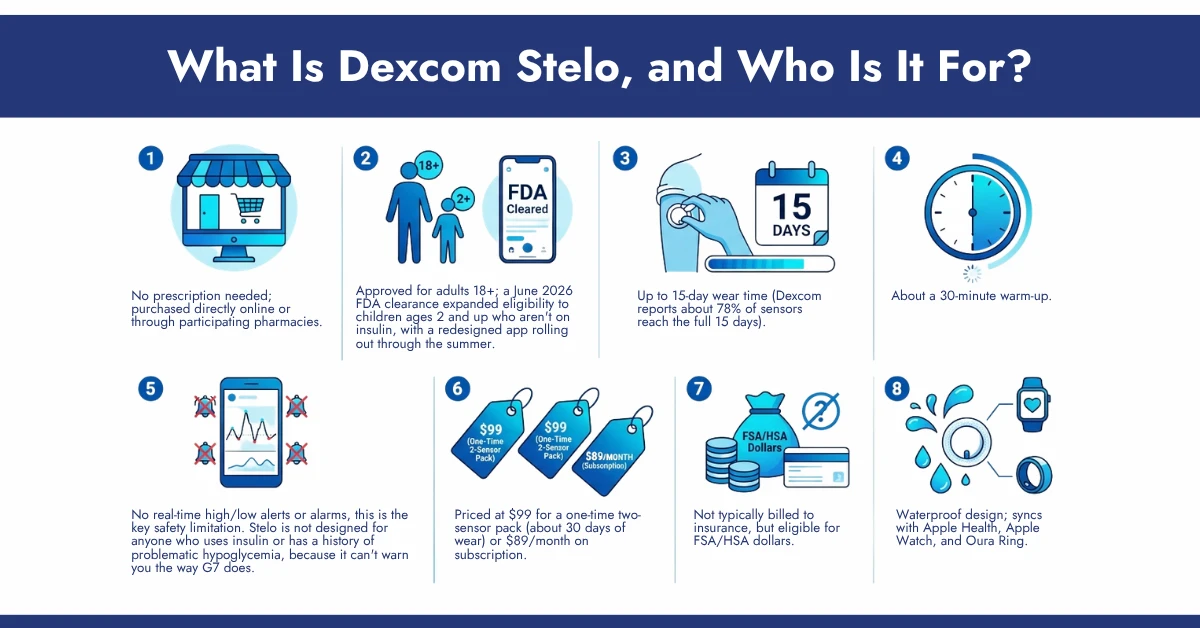
Stelo at a glance:
- No prescription needed; purchased directly online or through participating pharmacies.
- Approved for adults 18+; a June 2026 FDA clearance expanded eligibility to children ages 2 and up who aren’t on insulin, with a redesigned app rolling out through the summer.
- Up to 15-day wear time (Dexcom reports about 78% of sensors reach the full 15 days)
- About a 30-minute warm-up.
- No real-time high/low alerts or alarms, this is the key safety limitation. Stelo is not designed for anyone who uses insulin or has a history of problematic hypoglycemia, because it can’t warn you the way G7 does.
- Priced at $99 for a one-time two-sensor pack (about 30 days of wear) or $89/month on subscription.
- Not typically billed to insurance, but eligible for FSA/HSA dollars.
- Waterproof design; syncs with Apple Health, Apple Watch, and Oura Ring.
If you’re on insulin, have been told you’re at risk for severe low blood sugar, or you’re on dialysis, Stelo isn’t the right fit, talk to your provider about Dexcom G7 or G7 15 Day instead, which are built for exactly those situations. If neither of those applies to you and you just want a clearer picture of your glucose patterns, Stelo is worth a look, browse our shop to compare it against the prescription options.
How Do Dexcom G7, G7 15 Day, G6, and Stelo Compare?
G7 and G7 15 Day are the prescription options with real-time alerts, built for anyone on insulin or at risk of hypoglycemia, the difference between them is wear time and minimum age. G6 is the outgoing legacy device. Stelo is the no-prescription option for people not on insulin who don’t need alarms.
| Dexcom G7 | Dexcom G7 15 Day | Dexcom G6 (phasing out) | Stelo | |
| Prescription required? | Yes | Yes | Yes | No, OTC |
| Approved ages | 2+ | 18+ | 2+ | 18+ (expanding to 2+, not on insulin) |
| Wear time | ~10.5 days | ~15.5 days | 10 days | Up to 15 days |
| Warm-up | 30 minutes | 60 minutes | ~2 hours | ~30 minutes |
| Real-time alerts/alarms | Yes | Yes | Yes | No |
| Calibration | Optional | Optional | Optional | Optional |
| Reported accuracy (MARD) | 8.2% | 8.0% | ~9%† | Not independently published |
| Approved U.S. placement | Back of upper arm (2+); upper buttocks (2–6) | Back of upper arm (18+) | Abdomen (adults); abdomen or upper buttocks (children) | Back of the upper arm |
| Insulin pump integration | iLet, Omnipod 5, Tandem Mobi, Tandem t: slim X2 | iLet (18+), Omnipod 5, Tandem t:slim X2 (Mobi expected) | Legacy pump support | None |
| Typical monthly cost, insured/Medicare | $20 or less | $20 or less | $20 or less | Not typically covered |
| Cash price, no insurance | Several hundred dollars/month* | Similar, but only 2 sensors needed/month | Similar, while supplies last | $89-$99/month |
| 2026 status | Current | Current & newest | Manufacturing ended 7/1/26 | Current, recently expanded |
Actual out-of-pocket cost varies by plan, pharmacy, and whether you use Dexcom’s savings program; see the cost section below. †Based on published clinical literature rather than a current Dexcom marketing figure, Dexcom highlights G7 and G7 15 Days’ improved accuracy over G6.
Where Do You Place a Dexcom Sensor?
In the United States, Dexcom G7 and G7 15 Day are FDA-cleared for the back of the upper arm only (ages 2 and up), plus the upper buttocks for children ages 2-6 on the standard 10-day G7. The abdomen, thigh, and other sites are not FDA-approved placements for G7 in the U.S.; that’s different from the older G6, which does have an approved abdomen site for adults.
This surprises a lot of people switching from G6, so it’s worth explaining the “why.” During Dexcom’s testing, sensors worn on the back of the upper arm delivered the most consistent, stable performance for the G7’s smaller design, so that’s the only site the FDA cleared it for in the U.S., even though G7 is approved for the arm and abdomen in some other countries (UK, EU, and others). Dexcom G6 (phasing out) is approved for the abdomen.
What about the abdomen, thigh, or chest? These are not FDA-tested or approved sites for G7 in the U.S. Some users do wear their sensor there off-label, and report it works fine for them, but Dexcom hasn’t validated accuracy at those sites, so you may see more compression lows, erratic readings, adhesion problems, or early sensor failure, and it isn’t something we can recommend without your care team’s input. If the approved arm site genuinely isn’t workable for you (limited arm mobility, tattoos, scarring, or persistent irritation), that’s a conversation for your prescriber, not a placement to troubleshoot on your own.
A few practical placement tips that apply wherever you’re cleared to wear it:
- Rotate sides (and sites, for children using the buttocks option) with every sensor change; repeated use of the same spot irritates and can reduce accuracy.
- Clean the site with an alcohol wipe and let it dry fully before applying.
- Avoid areas with scar tissue, tattoos, bony prominences, or a lot of friction from clothing or a bag strap.
- If you’re also wearing an insulin pump pod (like Omnipod 5) on the same arm or nearby, keep the two sites a few inches apart so neither interferes with the other’s adhesion.
For a deeper walkthrough with photos and step-by-step insertion technique, see our dedicated guide: Dexcom G7 Placement Sites: Thigh, Arm and Abdomen.
How Do You Set Up a New Dexcom Sensor?
Setting up a new Dexcom G7 sensor takes about five minutes of hands-on time, plus a 30-minute (G7) or 60-minute (G7 15 Day) warm-up before you see your first reading.
| Step | What to Do |
| Prep the site | Wash hands; clean the back of your upper arm with an alcohol wipe and let it air-dry |
| Open the app | Open the Dexcom app (or receiver) and start “Add Sensor”/”New Sensor” |
| Scan or enter the code | Scan the sensor’s QR code, or enter the code manually if scanning fails |
| Apply the sensor | Place the applicator flat against the prepped site and press firmly until you hear/feel the click |
| Remove the applicator | Lift the applicator straight up and away; the sensor and adhesive patch stay on your skin |
| Confirm the overpatch | Smooth down the included overpatch around the edges for extra hold |
| Pair the transmitter | The app will automatically detect and pair with the new sensor via Bluetooth |
| Wait through warm-up | 30 minutes for G7, 60 minutes for G7 15 Day — no readings display during this window |
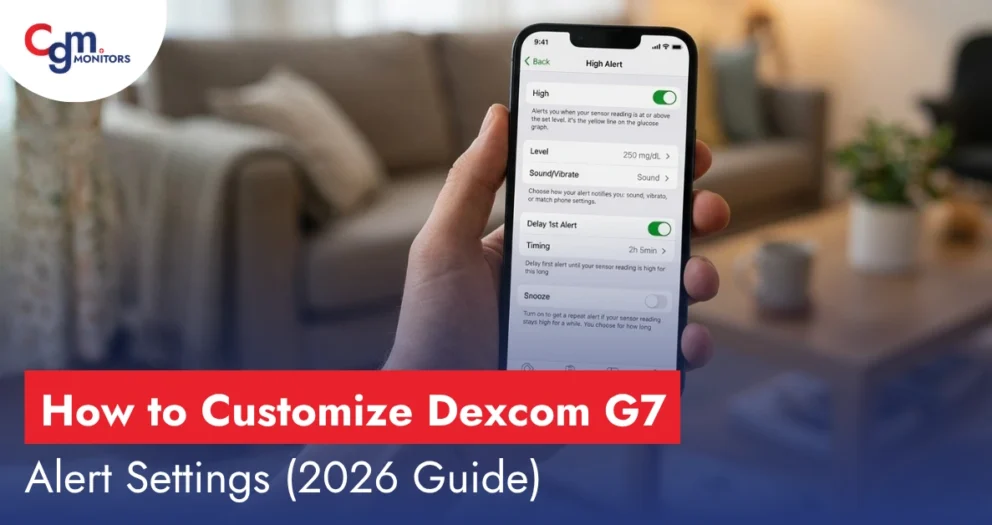
| Set your alerts | Once live, set your high/low glucose alert thresholds in the app settings |
A few things that trip people up the first time:
- Nothing will display during warm-up, that’s expected, not an error.
- If the code won’t scan, you can always type it in manually, it’s printed on the sensor pack.
- Apply firm, even pressure during insertion a light or hesitant press is the most common reason a sensor doesn’t seat properly.
- Consider applying the overpatch from day one rather than waiting for adhesion problems, especially if you’re active, sweat heavily, or live somewhere hot and humid.
What Phones, Watches, and Pumps Work With Dexcom?
Dexcom G7 works with most recent iPhone and Android flagship phones, several Apple Watch models (some with “direct-to-watch” display), and all four major insulin pump systems on the U.S. market, though exact model support changes often enough that Dexcom keeps a live-updated list rather than a fixed one.
Phones and watches: Dexcom maintains its current compatibility list at dexcom.com/compatibility because new phone models (and new OS versions) are tested and added on a rolling basis, a list printed in any article, including this one, can go stale within months. As a rule of thumb:
- Recent iPhone models running a current iOS version are broadly supported.
- Recent Android flagships from Samsung, Google, and several other manufacturers are supported, though not every Android phone is, check before you buy a new one if staying paired matters to you.
- Some Apple Watch models support “direct-to-watch” viewing, meaning your watch can show glucose data without your phone nearby, but you still need a compatible smartphone to initially pair a new sensor.
- If your current phone isn’t on the list, the Dexcom G7 receiver works independently of any smartphone.
For a fuller rundown including specific model families, see our Dexcom G7 Compatible Phones and Smartwatches guide, and always cross-check anything you read (including that post) against dexcom.com/compatibility before purchasing new hardware, since this list changes.
Insulin pumps: Dexcom G7 is built to integrate with every major automated insulin delivery (AID) system sold in the U.S. today:
| Insulin Pump | Works with Dexcom G7 (10-day)? | Works with Dexcom G7 15 Day? |
| Beta Bionics iLet Bionic Pancreas | Yes | Yes, for adult users (18+) only |
| Omnipod 5 | Yes | Yes |
| Tandem t:slim X2 | Yes | Yes (recently added) |
| Tandem Mobi | Yes | Not yet — expected, check current status |
A couple of nuances worth knowing: even though the iLet and Omnipod 5 are themselves cleared for younger patients, the G7 15 Day sensor’s own 18+ age restriction still applies, a pediatric patient on either pump stays on the standard 10-day G7. And you can’t wear a G6 and G7 sensor at the same time; pick one system per pump setup.
Does Dexcom Need to Be Calibrated?
No. Every current Dexcom device, G7, G7 15 Day, G6, and Stelo is factory-calibrated and works right out of the box without any fingerstick calibration. Calibration is available, but it’s entirely optional.
So, when would you want to use it? Dexcom suggests logging an optional calibration if:
- A reading doesn’t match how you feel (symptoms of a high or low that the sensor isn’t showing).
- Your sensor value and a fingerstick meter value are consistently more than about 20% apart.
- Your healthcare provider specifically recommends it for your situation.
How to log a calibration: take a fingerstick reading with a reliable blood glucose meter, then enter that value into the Dexcom app (Settings/History → add a Blood Glucose event → “Use as Calibration”) or receiver, within about five minutes of testing, using clean, dry hands. Only ever enter a genuine fingerstick meter value, never a number from another CGM or estimate.
If you see a “Calibration Not Used” message, it usually means the system needs a little more time to incorporate the new value. Wait roughly an hour and try again with a fresh fingerstick.
One thing to keep in mind, either way: your sensor reads glucose in the interstitial fluid under your skin, while a meter reads it directly from blood, the two measure slightly different things and can lag each other by up to about 15 minutes, so some day-to-day variation between them is normal, not necessarily a sign anything’s wrong.
What Do You Do When Dexcom Isn’t Working? (Plus 2026 Safety Notices)
Most common Dexcom issues, signal loss, a temporary false reading, or a sensor that won’t pair, resolve with a quick restart, a site check, or patience through the first few hours of a new sensor. If your device is part of an active recall, stop using it and contact Dexcom directly before troubleshooting further.
Common issues and fixes
- Signal loss/random Bluetooth disconnects
Cause: Phone out of range, Bluetooth or app needs a restart, phone in battery-saver mode.
What to Do: Keep your phone within range, toggle Bluetooth off/on, update the app, and disable aggressive battery optimization for the Dexcom app - False high or false low reading
Cause: Sensor still stabilizing (especially in the first 24 hours), pressure on the sensor, site issue.
What to Do: Confirm with a fingerstick if symptoms don’t match; give a new sensor time to settle; avoid pressure on the site. - Compression low
Cause: Lying or pressing directly on the sensor cuts local blood flow, temporarily dropping the reading.
What to Do: Reposition, avoid sleeping directly on the sensor arm. Reading should normalize once pressure is released - Sensor won’t pair or start a session:
Cause: Expired or mistyped code, app glitch, defective sensor.
What to Do: Re-enter the code manually, restart the app/phone, and contact Dexcom for a replacement if it persists. - Sensor error code / early “sensor failed”:
Cause: Manufacturing variance (a small percentage of sensors end early even when used correctly), site issue.
What to Do: Follow the in-app prompt; Dexcom replaces confirmed defective sensors at no cost. - The sensor fell off early:
Cause: Inadequate adhesion, heavy sweat, and friction from clothing.
What to Do: Add an overpatch, improve site prep, and rotate to a less friction-prone spot.
How Do You Replace or Remove a Dexcom Sensor?
Quick answer: At the end of a sensor’s wear period (or if it fails early), gently peel the overpatch and sensor adhesive from the edges inward, dispose of it, and apply a new sensor on a rotated site, the process takes just a couple of minutes.
| Step | What To Do |
| Loosen the edges | Starting at one corner, gently peel the overpatch and adhesive up, working slowly |
| Lift, don’t yank | Pull back at a low angle rather than straight up to reduce discomfort |
| Use warm water if needed | A warm, damp cloth or a bit of baby oil on stubborn adhesive helps it release without pain |
| Dispose of the sensor | Sensors aren’t reusable, dispose of per your local sharps/medical waste guidance |
| Check the skin | Look for redness or irritation before choosing your next site |
| 6. Rotate sites | Use the opposite arm (or next rotation site for kids) for the new sensor |
| Start the new sensor | Follow the setup steps above for your new sensor |
If you’re removing a G6, remember the separate transmitter is reusable, pop it out of the old sensor’s pod before disposing of the sensor, and snap it into the new one (this step doesn’t apply to G7 or G7 15 Day, which are one-piece and fully disposable).
Related Topic: How to Remove Dexcom G7 Sensor Safely and Painlessly
How Accurate Is Dexcom?
Dexcom’s current sensors are among the most accurate CGMs on the market. The standard G7 has a reported Mean Absolute Relative Difference (MARD) of 8.2%, and the newer G7 15 Day improves on that at 8.0%; both are well under the 10% threshold generally considered clinically reliable.
MARD measures the average percentage difference between a CGM’s readings and a lab-grade reference value across a full study. The lower the number, the closer the sensor tracks to a lab result on average. It’s not a guarantee that any single reading will be exactly right, which is part of why Dexcom still recommends a fingerstick check whenever your symptoms and your sensor reading don’t agree.
Why your CGM and glucometer sometimes disagree: A CGM measures glucose in interstitial fluid (the fluid surrounding the cells under your skin), while a fingerstick meter measures it directly in blood. Glucose moves from your bloodstream into interstitial fluid with a short delay, up to about 15 minutes, so the two numbers are expected to diverge somewhat, especially right after a meal, exercise, or a fast-moving high or low. For the most meaningful comparison, check both when your glucose is relatively stable (first thing in the morning, or a couple of hours after eating), not in the middle of a spike or crash.
How Much Does Dexcom Cost, With and Without Insurance?
Quick answer: Most people with commercial insurance or Medicare who meet coverage criteria pay $20 or less per month for Dexcom G7 or G7 15 Day. Without coverage, cash pricing typically runs several hundred dollars a month, though Dexcom’s own savings program and manufacturer coupons can cut that significantly, and CGM Monitors can often help reduce it further by billing your specific plan directly.
| With Insurance/Medicare | Without Coverage (cash) | |
| Dexcom G7/G7 15 Day | Most covered patients pay $20/month or less | Roughly $300+/month retail; Dexcom’s savings program can cut over $200/month for eligible patients |
| Dexcom G6 (while supplies last) | Similar to G7 pricing | Similar to G7 pricing |
| Stelo | Not typically insurance-billed | $89-$99/month; FSA/HSA eligible |
A few things that affect what you’ll actually pay:
- Medicare covers Dexcom G7 and G7 15 Day for beneficiaries who meet CMS coverage criteria, but a Dexcom receiver is required as part of Medicare coverage, the app alone doesn’t satisfy the requirement.
- Commercial insurance coverage varies by plan, but Dexcom reports it’s the most widely covered CGM brand, with the large majority of insulin users on commercial plans covered and most Medicare insulin users covered as well.
- CPT/HCPCS billing codes A4239 and E2103 are the ones used for CGM reimbursement under Medicare’s DME fee schedule, if that’s useful context for a conversation with your plan.
- CGM Monitors handles the paperwork for you, eligibility verification, prior authorization, co-insurance checks, and claims submission, so you’re not doing this alone. Check your eligibility for free, or review the full CGM coverage criteria if you want the specifics before you call.
- If cost is the main barrier and you don’t have coverage, ask about our subscribe & save program for recurring sensor discounts, or consider whether Stelo’s flat $89-$99/month fits your situation better than paying cash for a prescription CGM.
Which Dexcom Should You Buy?
If you’re on insulin or at risk of severe hypoglycemia, you need a device with real-time alerts, which means G7 or G7 15 Day, prescribed by your doctor. If you’re not on insulin and don’t need alarms, Stelo is worth considering as a no-prescription option.
A simple way to think through it:
- On insulin, or you’ve had dangerous lows before → Dexcom G7 or G7 15 Day. Talk to your prescriber about which one; G7 15 Day (adults only) means fewer sensor changes, while standard G7 is the only option for anyone under 18 or for full compatibility with every pump on the market today.
- Managing pregnancy (gestational diabetes) → Dexcom G7 15 Day’s labeling explicitly includes gestational diabetes for adults; if you’re pregnant and considering a CGM, this is a conversation worth having directly with your OB or endocrinologist, since individual pregnancy situations vary.
- Type 2 diabetes, not on insulin, want deeper insight → Ask your doctor whether a prescription CGM makes sense for you, or consider Stelo if you’d rather skip the prescription process entirely.
- Prediabetes or just curious about your metabolic patterns → Stelo, since it doesn’t require a diabetes diagnosis at all.
- Currently on G6 → Start the conversation with your doctor now about switching to G7 or G7 15 Day, given the July 2026 manufacturing cutoff.
- Weighing Dexcom against FreeStyle Libre → Both are solid, FDA-cleared systems; the right pick often comes down to your insurance plan’s preferred brand, which pump you use (if any), and which approved placement site works better for your lifestyle. Our team can compare your specific coverage for both brands.
Whichever direction you’re leaning, this is ultimately a decision to make with your prescriber; this guide is meant to help you ask better questions at that appointment, not replace it.
What Accessories Do You Need With Dexcom?
Most people don’t need anything beyond the sensor itself, but an overpatch (extra adhesive cover) is the single most popular add-on, especially for anyone who swims, sweats heavily during exercise, or lives somewhere hot and humid.
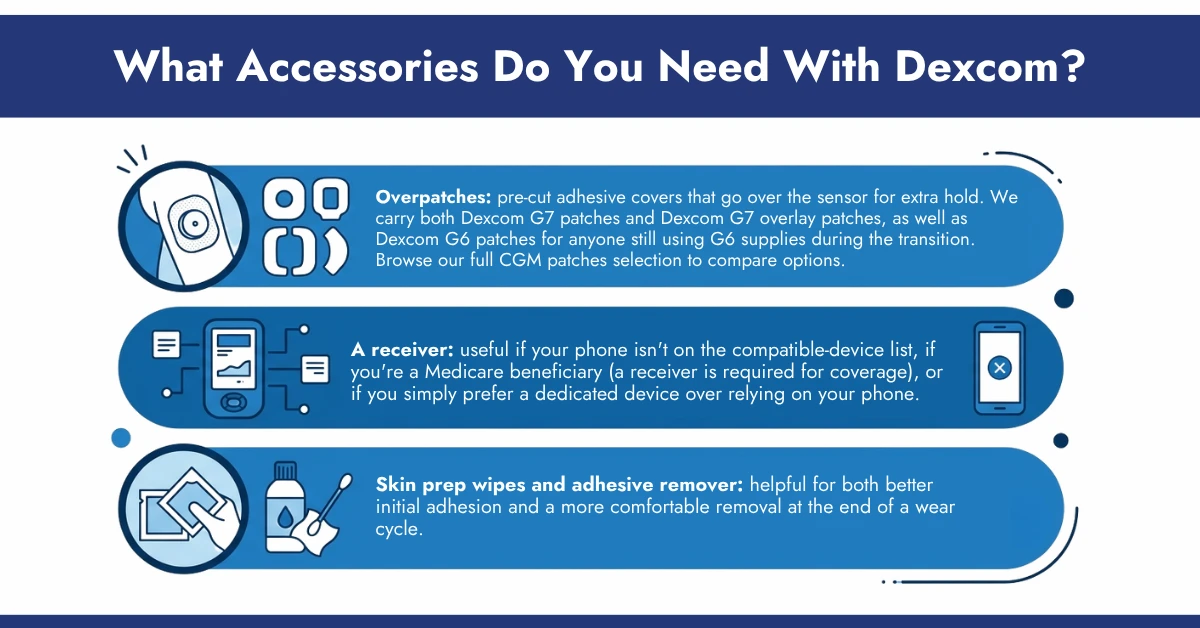
- Overpatches: pre-cut adhesive covers that go over the sensor for extra hold. We carry both Dexcom G7 patches and Dexcom G7 overlay patches, as well as Dexcom G6 patches for anyone still using G6 supplies during the transition. Browse our full CGM patches selection to compare options.
- A receiver: useful if your phone isn’t on the compatible-device list, if you’re a Medicare beneficiary (a receiver is required for coverage), or if you simply prefer a dedicated device over relying on your phone.
- Skin prep wipes and adhesive remover: helpful for both better initial adhesion and a more comfortable removal at the end of a wear cycle.
What Are the Most Common Dexcom Problems?
The complaints we hear most often are sensors coming loose before the wear period ends, overnight compression lows, occasional Bluetooth dropouts, and readings that feel unstable in the first few hours of a new sensor.
- Early sensor loss: The G7’s smaller adhesive footprint than older Dexcom generations means some users, especially swimmers, athletes, or anyone in a hot climate, see sensors loosen before day 10 (or day 15). An overpatch applied from the start, rather than after adhesion starts to fail, is the most effective fix.
- Overnight compression lows: By far the most common overnight complaint, and almost always resolved by adjusting which arm you sleep on or how you position yourself relative to the sensor.
- Connectivity blips: A brief “signal loss” notification, usually resolved by keeping your phone in range and your app updated, is genuinely rare to need Dexcom support for this one.
- Early sensor failure: A small, expected percentage of sensors, Dexcom’s own data points to roughly a quarter of G7 15 Day sensors ending before the full 15 days, fail before their labeled wear time, even with correct use. Dexcom replaces these free of charge.
- First-day instability: Some users notice readings feel less steady in the first 24 hours of a new sensor as it fully stabilizes; this typically settles without any action needed.
What Are the Best Practices for Wearing Dexcom?
Dexcom G7 and G7 15 Day are waterproof, safe through most airport security, and designed to be worn continuously through exercise, showers, and sleep, a handful of simple habits (rotating sites, avoiding pressure overnight, keeping your phone in range) prevent almost every common complaint.
- Showering and swimming: G7 and G7 15 Day are rated waterproof for submersion up to 8 feet deep for up to 24 hours, shower, swim, and bathe normally without removing it.
- Sleep and side sleeping: Sleeping directly on top of the sensor can trigger a temporary compression low. If you’re a side sleeper, try wearing the sensor on the arm you sleep away from, and alternate arms with each new sensor.
- Exercise: The sensor stays in place and keeps reading through most workouts. Heavy sweating or friction from gym equipment or gear straps can occasionally loosen adhesive faster, an overpatch helps here too.
Air travel and security screening (G7 and G7 15 Day):
- You can wear your sensor through both walk-through metal detectors and full-body (Advanced Imaging Technology) scanners without removing it or affecting its performance.
- Prefer not to go through a scanner at all? You can request hand-wanding and a visual inspection instead, just tell the officer you’re wearing a continuous glucose monitor that can’t be removed.
- Extra sensors packed in a bag are safe to go through carry-on X-ray screening.
- Keep supplies in your carry-on rather than checked luggage to avoid extreme temperature and pressure swings in the cargo hold.
- G6 users: the guidance is different, Dexcom recommends requesting a pat-down instead of a full-body scanner for G6, since it hasn’t been tested the same way as G7.
International travel: Dexcom G7 works in a number of countries outside the U.S. Avoid deleting and reinstalling the app while abroad, since some features are set for your home region.
Site rotation, always: whatever site you’re approved for, switch sides with every new sensor. It’s the single easiest thing you can do to prevent both skin irritation and the accuracy problems that come from overusing one spot.
Conclusion
Dexcom’s 2026 lineup is simpler than it might look from the outside: G7 and the newer G7 15 Day cover anyone who needs a prescription CGM with real-time alerts, Stelo covers everyone else, and G6 is on its way out after a long run as Dexcom’s mainstream device. The details that trip people up, exactly where you’re allowed to place a G7, whether you actually need to calibrate, what a compression low is, usually have a straightforward answer once you know where to look, which is what this guide is for.
If you still have a specific question about your insurance coverage, which device fits your situation, or getting your G6 prescription updated before the July 2026 cutoff, our diabetes care specialists are a phone call away, and we handle the insurance paperwork so you don’t have to.
Medical Disclaimer
This guide is educational content provided by CGM Monitors and is not personalized medical advice. It doesn’t replace guidance from your doctor, endocrinologist, or diabetes care team, and it isn’t a substitute for the official instructions for use that come with your specific Dexcom device. Always follow your care team’s guidance for your individual treatment plan, including any insulin dosing decisions. This page does not provide dosing instructions of any kind.
Device specifications, FDA clearances, pricing, and insurance coverage rules change over time; the details above reflect our understanding as of the “last updated” date at the top of this page. For the most current safety information, always check dexcom.com/safety-information directly. If you experience symptoms that don’t match your CGM reading, or you suspect you’re having a severe high or low blood sugar event, use a blood glucose meter to confirm and seek medical attention, including emergency care as needed.
Frequently Asked Questions
Is the Dexcom G7 really more accurate than the G6?
Yes, modestly, G7 has a reported MARD of 8.2%, improving on G6’s published accuracy, and the newer G7 15 Day improves further to 8.0%. All current Dexcom devices fall under the 10% threshold generally considered clinically reliable.
Do I need to calibrate my Dexcom G7?
No. It’s factory-calibrated and works without fingersticks. You can optionally log a blood glucose meter reading as a calibration if a reading seems consistently off or doesn’t match your symptoms.
Why is my Dexcom reading different from my glucometer?
CGMs measure glucose in interstitial fluid, not blood, which naturally lags blood glucose by up to about 15 minutes. Some difference between the two is expected, especially right after eating or exercise, compare them when your glucose is relatively stable for the most meaningful check.
Can Dexcom replace fingersticks?
For everyday treatment decisions, yes, G7 and G7 15 Day are cleared to replace routine fingersticks. Dexcom still recommends a fingerstick check, specifically when your symptoms don’t match what the sensor is showing.
Is the back of the arm really the only approved placement?
In the U.S., yes, for G7 and G7 15 Day, that’s the only FDA-cleared adult site (plus the upper buttocks for children 2-6 on the 10-day G7). The abdomen is approved for the older G6, not G7, in the U.S.
Can I wear Dexcom on my thigh or stomach?
Some users do, off-label, but neither site is FDA-tested or approved for G7 in the U.S., and accuracy, adhesion, and compression-low risk aren’t guaranteed there. If the approved arm site isn’t working for you, that’s worth raising with your prescriber.
Which arm should I wear Dexcom on?
Either works equally well; rotate sides with every new sensor to give your skin time to recover.
Can I sleep on my Dexcom sensor?
You can, but sustained direct pressure can cause a temporary “compression low.” Many users find it more comfortable to sleep on the side without the sensor, or to alternate arms.
What's the best placement for side sleepers?
Wear the sensor on the arm you sleep away from, and switch which arm you use with each new sensor so you’re not putting repeated pressure on the same spot.
Why do I get compression lows every night?
A compression low happens when you lie or press directly on the sensor, temporarily reducing blood flow to the tissue underneath and producing an artificially low reading. It typically resolves once the pressure is released.
Does the G7 fall off more easily than the G6?
Some users find the G7’s smaller adhesive area less durable during heavy sweating, swimming, or high-friction activity. An overpatch significantly extends wear time for these users.
What's the best overpatch for Dexcom G7?
We carry Dexcom-specific G7 patches and overlay patches sized to fit the sensor without covering the reader window.
Does Dexcom work while swimming or showering?
Yes, G7 and G7 15 Day are waterproof to 8 feet of water for up to 24 hours.
Which phone works best with Dexcom?
Most recent iPhones and many current Android flagships are supported, but the list changes as Dexcom adds new models. Check dexcom.com/compatibility before buying a new phone if staying paired matters to you.
Is the receiver better than the app?
Neither is universally “better.” The receiver is a dedicated, phone-independent display device (and is required for some Medicare beneficiaries), while the app adds sharing and convenience on a device you already carry.
Which smartwatch works with Dexcom?
A number of Apple Watch models support direct-to-watch viewing, check dexcom.com/compatibility for the current list. You’ll still need a compatible smartphone to originally pair a new sensor, even if the watch can display readings independently afterward.
Why does Bluetooth randomly disconnect?
Usually, your phone being out of range, in battery-saver mode, or running an outdated app version. Keeping your phone nearby and your app updated resolves most cases.
Can I use Dexcom with Omnipod 5?
Yes, both the standard G7 and the G7 15 Day integrate with Omnipod 5.
What's the difference between Dexcom G6 and G7?
G7 is a single all-in-one disposable sensor and transmitter (no separate transmitter to manage), warms up in 30 minutes versus G6’s roughly 2 hours, and is about 60% smaller. G6 is being discontinued; G7 is the current standard.
Does Medicare pay for Dexcom?
Medicare covers G7 and G7 15 Day for beneficiaries who meet CMS criteria, though a Dexcom receiver is required as part of that coverage. See our CGM coverage criteria page for the full requirements.
Is G7 better than Libre?
Both are FDA-cleared, accurate CGM systems with broadly similar wear times. The better fit for you usually comes down to your insurance coverage, pump compatibility, and preferred placement site, our team can compare both against your specific coverage.
Can non-diabetics use Dexcom Stelo?
Yes, Stelo doesn’t require a diabetes diagnosis. It’s sold over-the-counter to adults 18+ (soon 2+) who aren’t on insulin, including people simply curious about their glucose patterns.
Can Dexcom go through airport scanners?
G7 and G7 15 Day can go through both metal detectors and full-body scanners without being removed. G6 has different guidance; Dexcom recommends a pat-down instead for G6 users.
Can I travel internationally with Dexcom?
Yes. Keep supplies in your carry-on, and avoid deleting and reinstalling the app while abroad, since some features are tied to your home region.
Does Dexcom work during exercise?
Yes, the sensor stays in place and continues reading through most workouts; an overpatch helps if heavy sweating or gear friction is an issue for you.
Can Dexcom be used during pregnancy?
Dexcom G7 15 Day’s labeling includes gestational diabetes for adults. If you’re pregnant and considering a CGM, this is worth discussing directly with your OB or endocrinologist, since individual situations vary and this page can’t give personalized guidance.



Write a comment
Your email address will not be published. All fields are required